In construction, Valuations are very important for the Contractors of the project. The Valuation technique helps you determine the fair price of propriety of any type of structure at any given time. This is usually done by an estate agent that visits the site when the construction is being done and evaluates the stage it is in. The payment terms, in Archdesk, can be set up to be paid:
- In Stages - where the payments are staged and all stages must add up to 100%
- As Valuation - payments are due when works are completed as per valuation. In addition, for the Valuation type of payment, you can add Retention
What is Retention?
Retention is a percentage (often 5%) of the amount certified as due to the contractor on an interim certificate, that is deducted from the amount due and retained by the client. The purpose of retention is to ensure that the contractor properly completes the activities required of them under the contract.
How can we setup Retention in Archdesk?
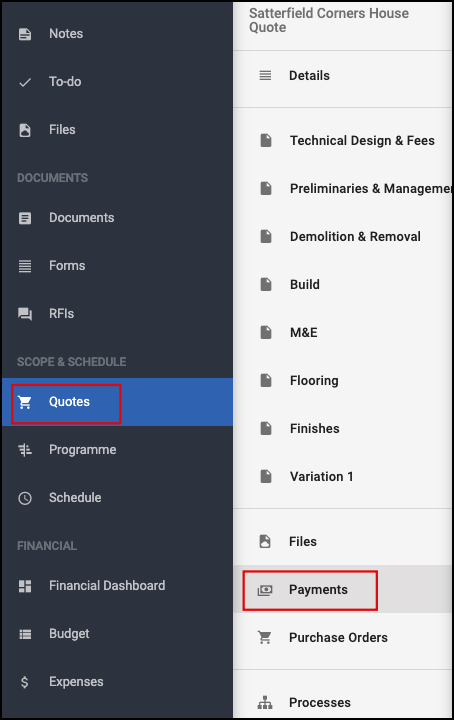
Once you have created the Quote for the specific Project, go inside it and click on the Payments option (for that you need to have the Quote already setup with Sections and accepted by the client / approved).
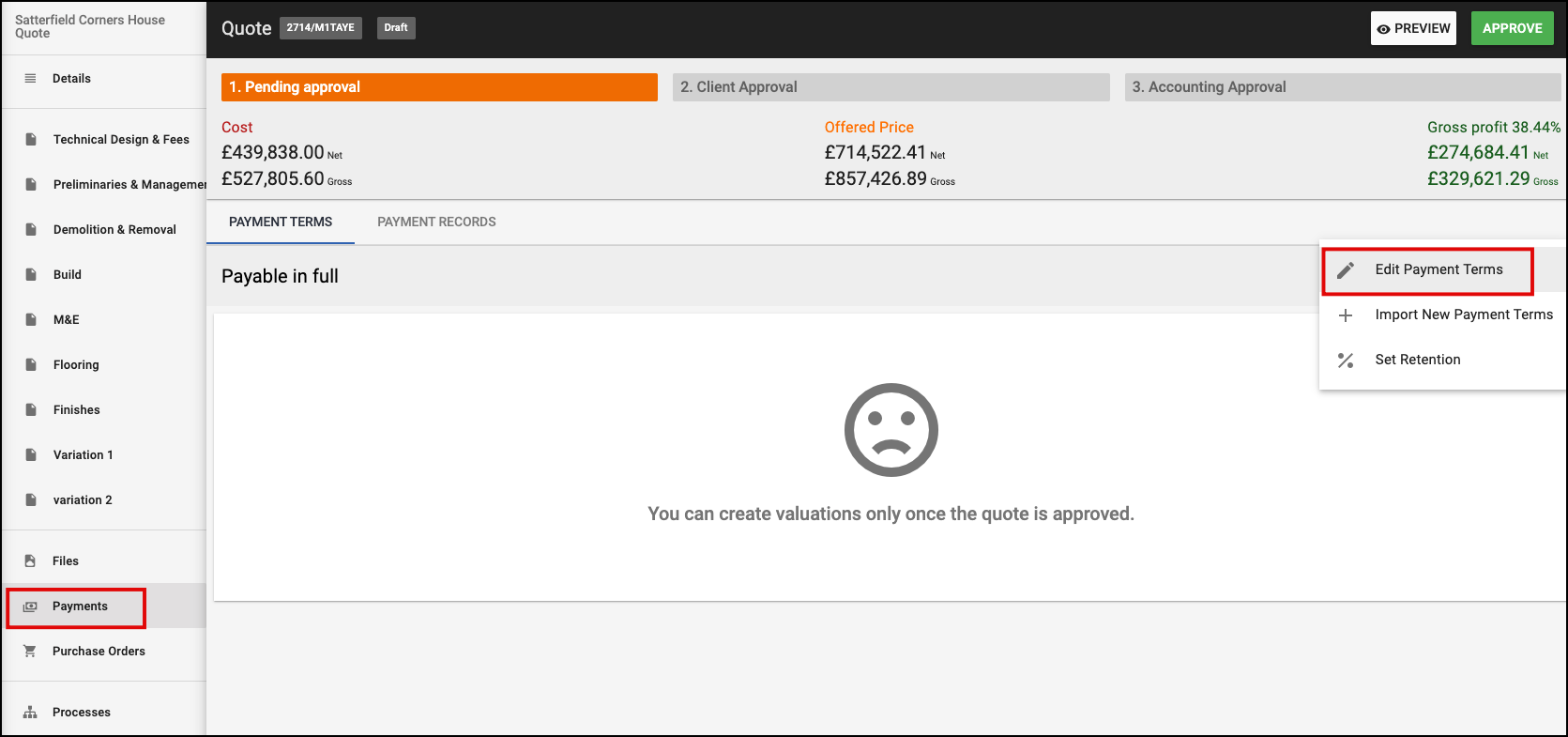
By default, Archdesk will have the Payment setup in instalments (Payments - Payable in full). What you need to do is click on OPTIONS and choose Edit Payment Terms. Here you can choose the Type of Payment - Stages or Valuation.
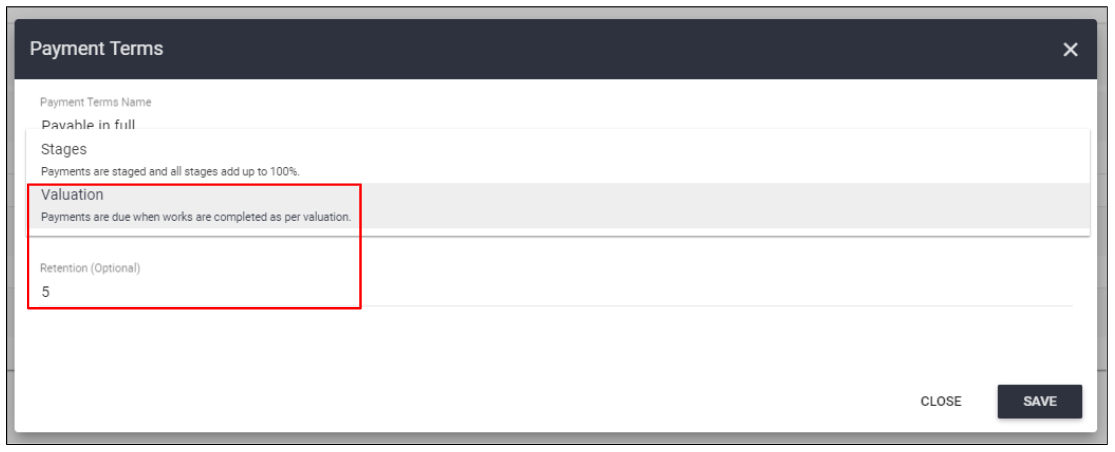
When you choose the Valuations option you can also choose to put in the Retention (Optional). Usually, that amounts to up to 5% so all you need to do is put in the number (without the percentage - % - sign) and hit the SAVE button.
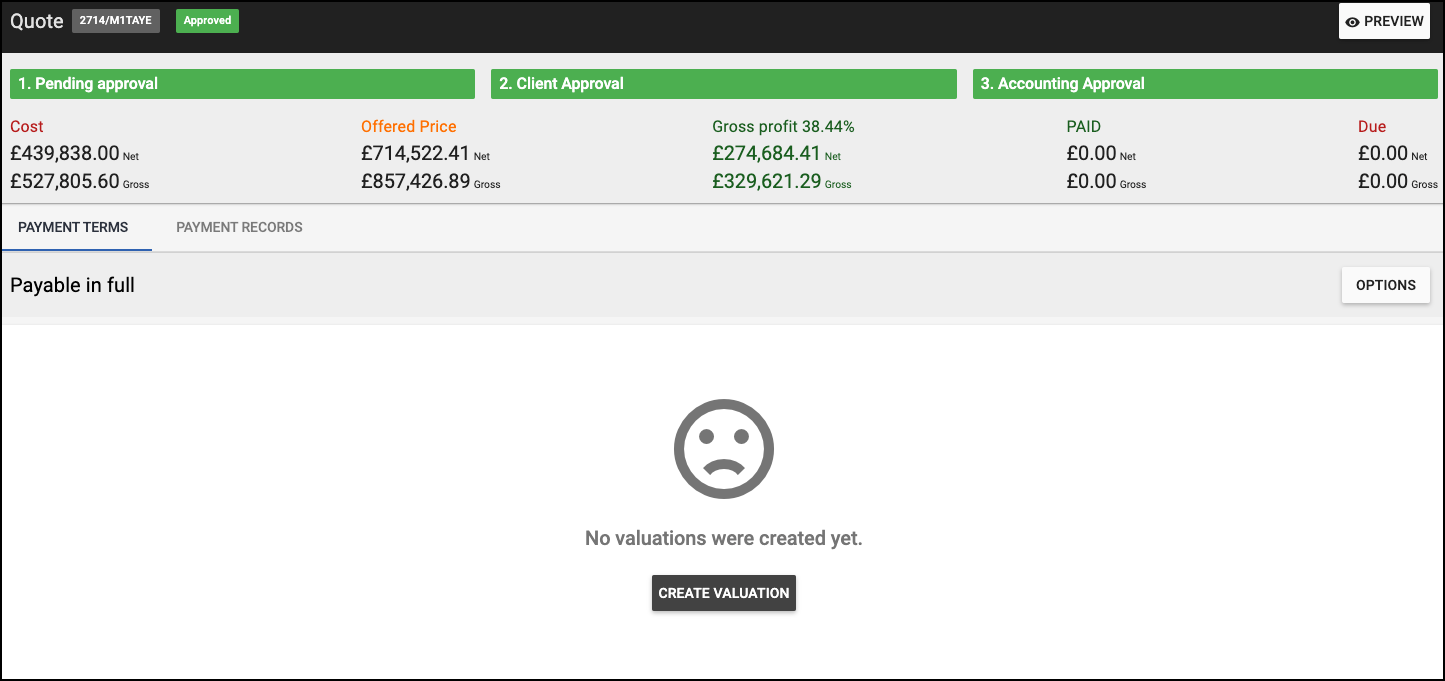
This brings you to the Payments Terms page where you will have to record the Valuations for the Quote. In order to start creating the Valuation, press on the CREATE VALUATION button.
2 new options will appear:

1) Add Valuation Report
Selecting this option, you will get a new window:

Here you will have to select the time frame for which the Valuation would be created.
In the case above, we are creating a Valuation for the 4th of January up to 3rd February 2022.
Next, you can insert a Reference number (your own) or leave the field empty if you wish for Archdesk to generate a random Reference number. You can also add a text Description to the Valuation and then press NEXT.

This will bring up the next window with the menu to select from the Sections of the Quote on which you wish to create the Valuation on.
NOTE!!! The Sections must be selected one by one - there is no multiple selection option!
Once you will click on the section you wish to work with, it will open up the items inside it. There you can select how you would like to specify delivered quantities - there are 3 options: 1) By Percentage, 2) By Delivered Quantity, 3) By Delivered Value.

According to the choice made in the dropdown, you will have to fill in the "Currently Delivered" boxes for the items of your choosing. That will auto-calculate the "Total Delivered" field. At the end, press NEXT.

This will bring you to the window with the sum-up of the "Total Delivered Value". Press SAVE and you will see the new window with the Valuation. In case you have setup an Approval flow for the Valuations, you will be able to see it here and move it from the Draft phase.

After the Approval process, you can CLOSE the window.

This will be the view under the Quote > Payments - after the first Valuation. As you can see, in this view you can see the Retention amount. In order to Add Valuation Report again, click on the red + and choose the same option as before. The flow will be the same.

2) Import Valuation
Selecting this option, you will get a new window:

There are 2 buttons here you will work with:
1) First, you will have to DOWNLOAD THE TEMPLATE
2) Once downloaded, open and fill it in with the changes in the Valuation and save it.
View of the template below:

As you can see, under the "Remaining Quantity" column you can see the updated values of the items. You will have to fill in one of the 3 columns:
- Currently Delivered Quantity
- Currently Delivered Percentage
- Currently Delivered Value
Once you will enter data on one of the 3 columns, you will see the "Completion" and "Payment for Current Period" columns also updating. Make sure you save the file before you upload it back to the system.
3) Go back to Archdesk to the window above and choose the SELECT FILE option in order to upload the file/template you have worked on. Make sure you setup the Data Range and the Retention Due Date inside the window, before making the upload.
How to download the Valuation in Archdesk?
In order to download the Valuation in Archdesk you must position yourself inside the Quote you wish to extract the Valuation from and go to the Payments tab. Next, you will have to click on OPTIONS > select the Download Payment Terms and choose one of the Export options you have available.

Once the choice is made, the export should be immediate and in the form chosen (PDF, Excel/CSV).
Here is a quick glance of the Full PDF Preview:

For more export options, please contact support@archdesk.com.