When you have access to quotes, Archdesk allows you to duplicate an existing quote within one project or even for different ones.
So, you can also use certain Quotes as a template for new projects.
There are 2 ways to duplicate the quote: Inside the specific quote and on the quote's list inside other projects:
I. Inside the specific quote that you wish to duplicate
1. Position yourself inside the Quote you wish to copy - make sure you are in the "Details" tab
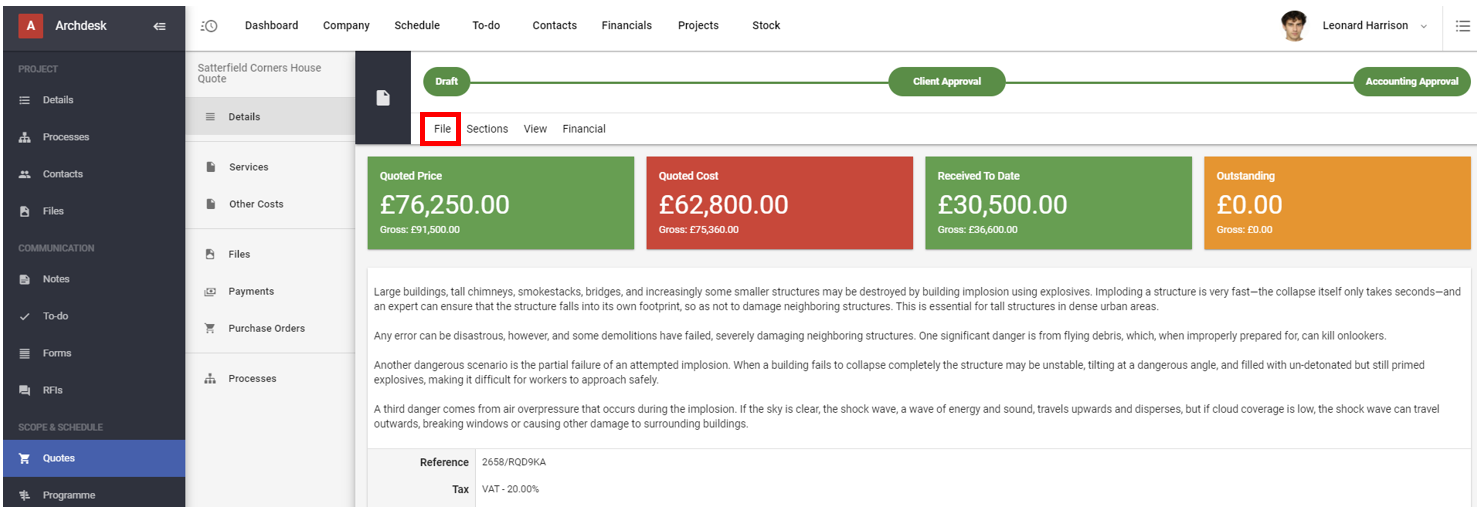
2. Click File and then Duplicate
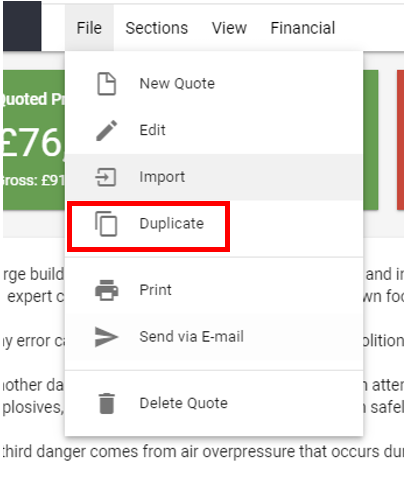
After that, the system will create a new quote for the same project with the reset approval process.
NOTE!!! The new Quote will be in the Draft status!
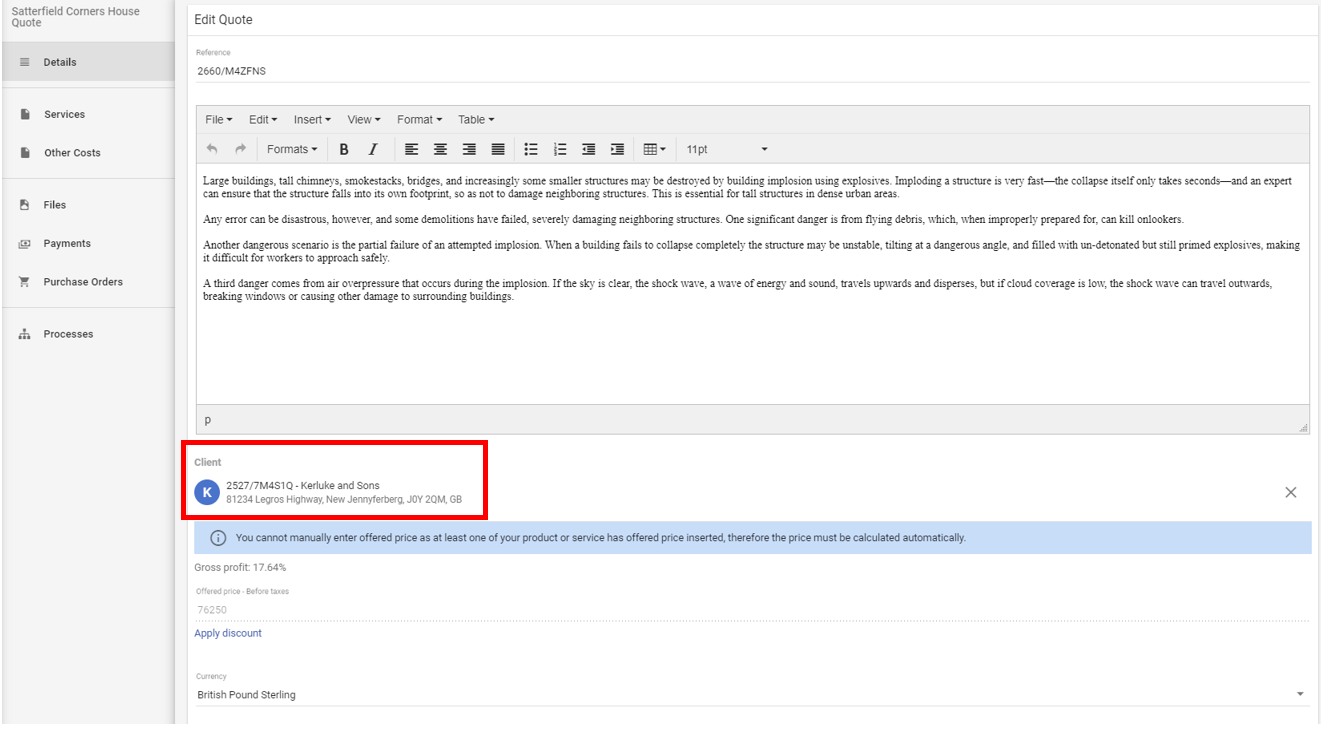
3. Now, use File -> Edit and put the right data (e.g. Client) for the new quote if any changes are needed.
When you move to the Quotes list for that project, you will see that the new quote contains the same data as the main one.
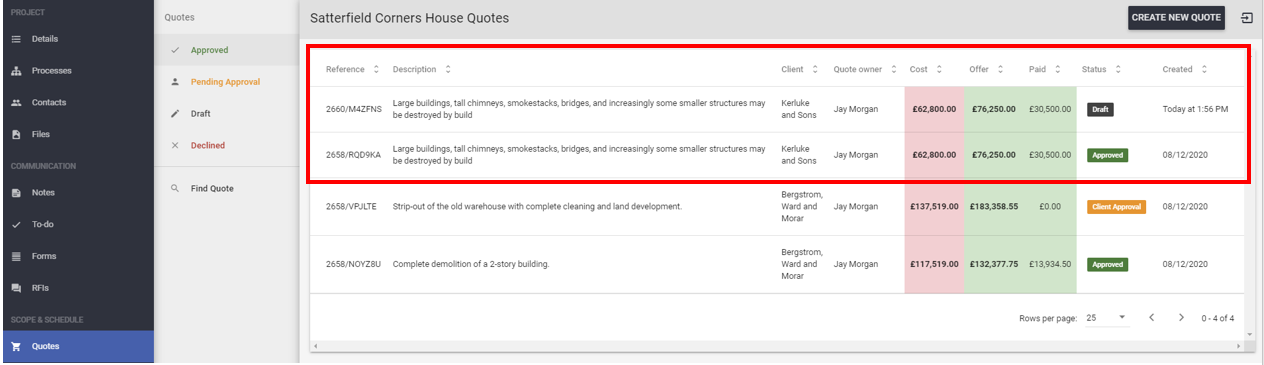
This way allows you to copy the quote only within the same project.
II. On the quote's list inside a different project
Let's say that you would copy the same quote for another project.
1. Please go to the quote's list inside the project you want to create the new quote for
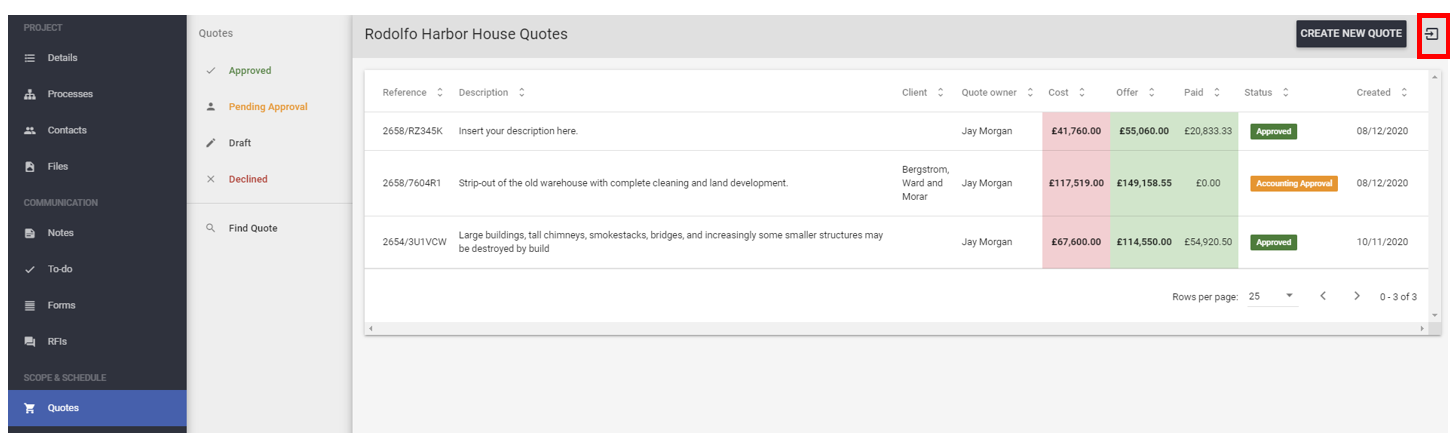
2. Click on the  icon and then, Copy Existing Quote
3. After that you must decide, which quote do you want to copy.
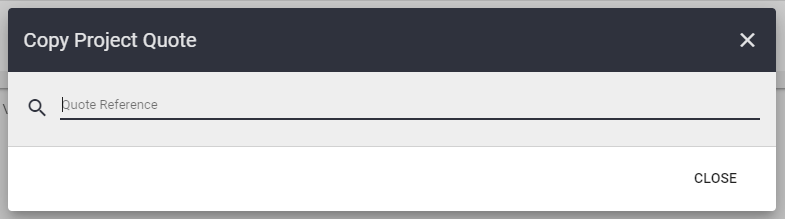
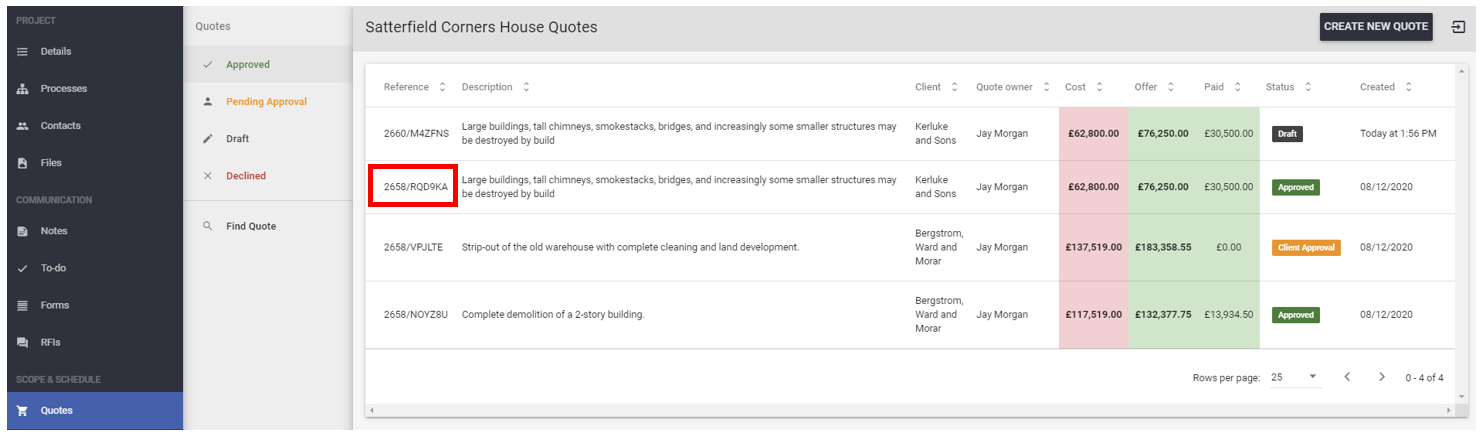
Please find the Quote Reference number. Make sure you copy and paste it in the window shown above.
When you start typing the reference number, the system will find associated quotes, so please select the proper one and click on it.
NOTE!!! It is best if you just copy-paste the Quote Reference number, to avoid any mistakes!
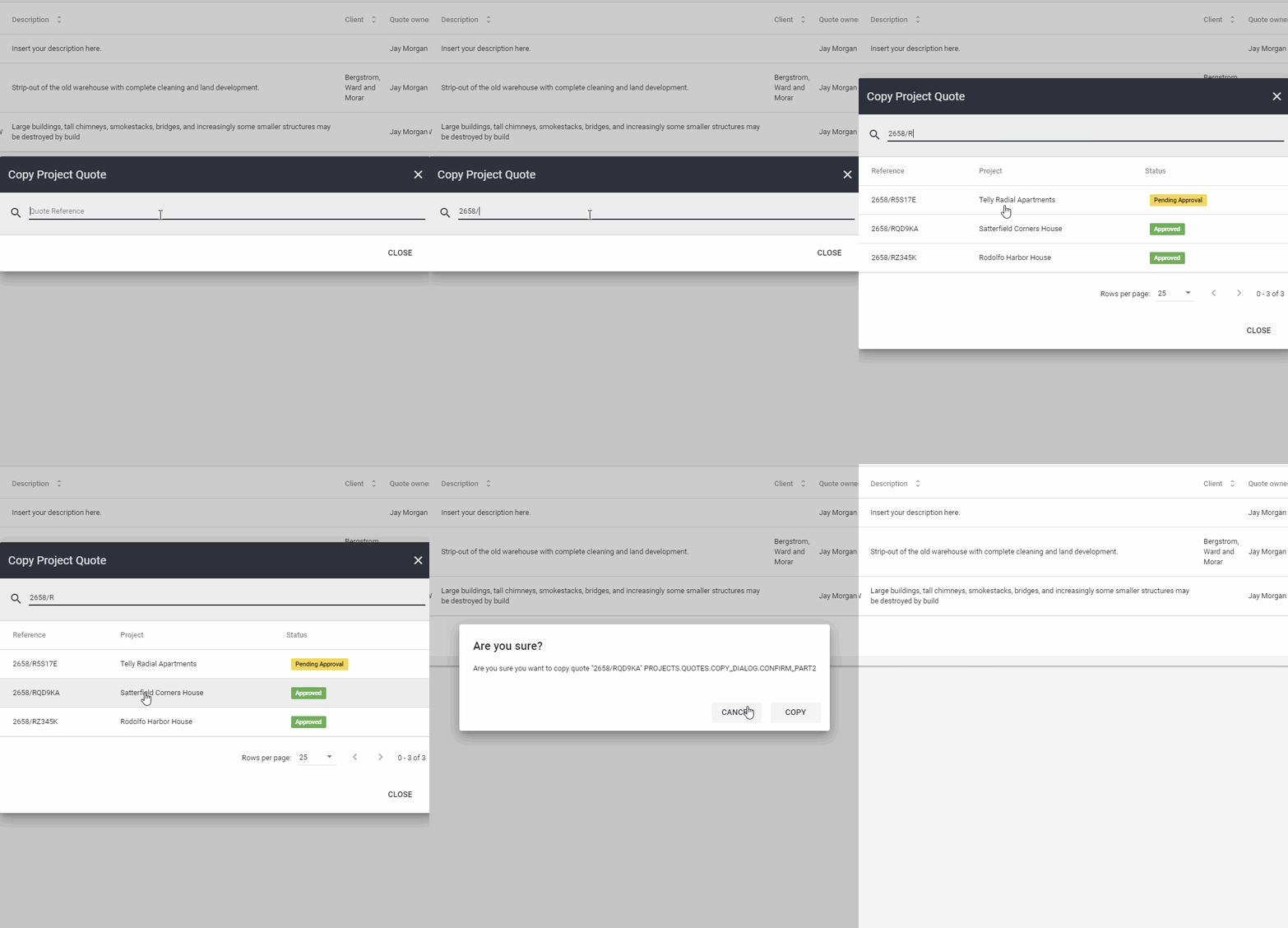
4. Confirm the action by clicking the COPY button
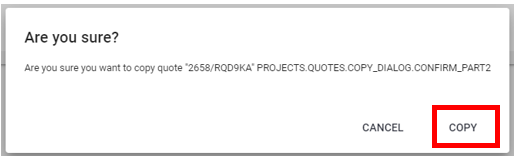
After that, the system will create a new quote (again, it will be a Draft version).
Please repeat actions from I. 3 to make sure, your quote includes the right data.
NOTE!!! For the situations presented above (both of them), before you will send the quote to the client, please make sure if the client details are correct and there aren't any client's data inside the quote (items, description) which ARE NOT applicable for a specific client!