There are multiple ways, once inside the Tender, to check the Tender offers received from the suppliers.
1. Individual Offer
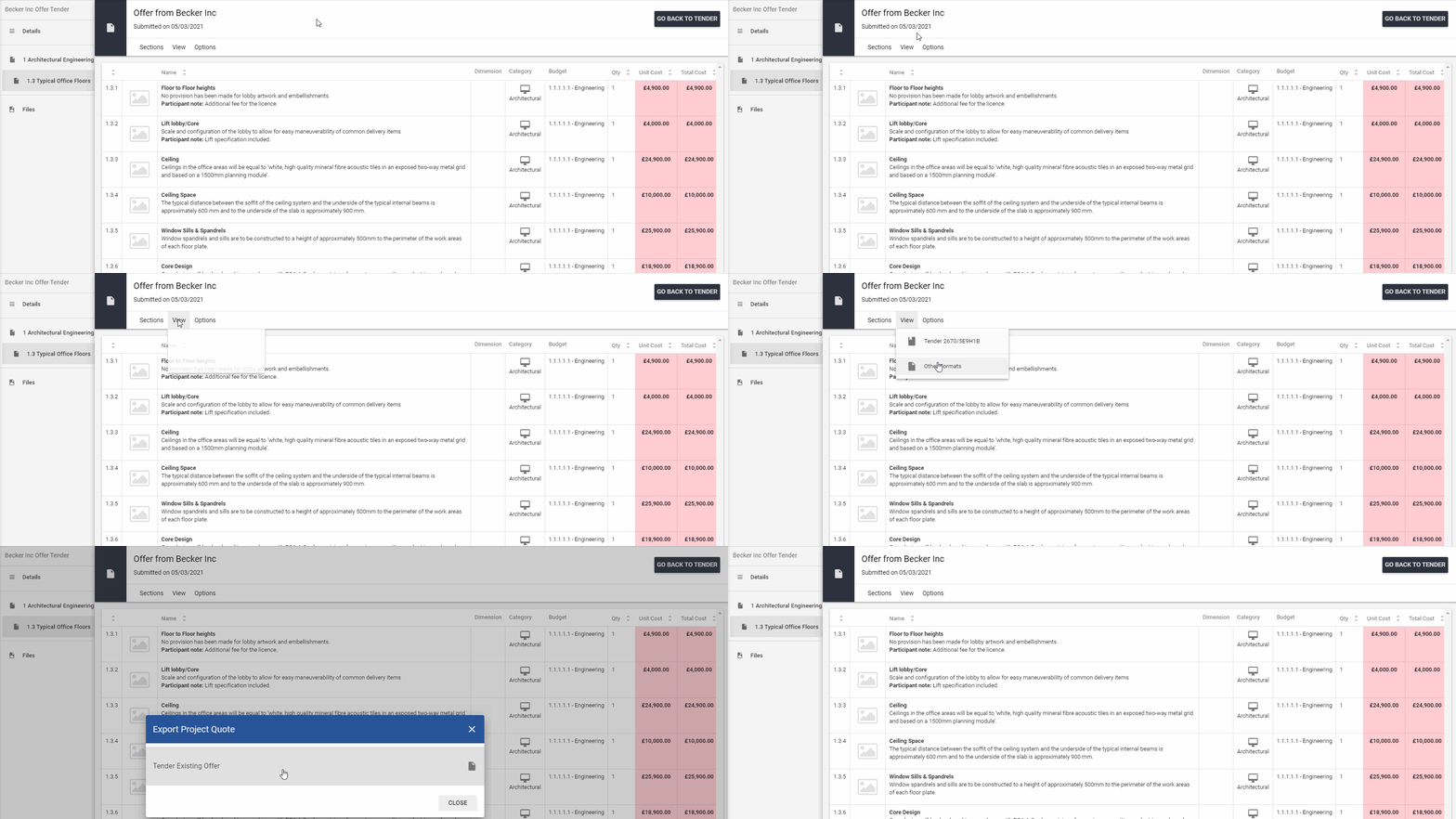
On the main Tender view, next to the participant's name you will see his latest offer. However, to view more detailed info, please click on icon  and use View Offers.
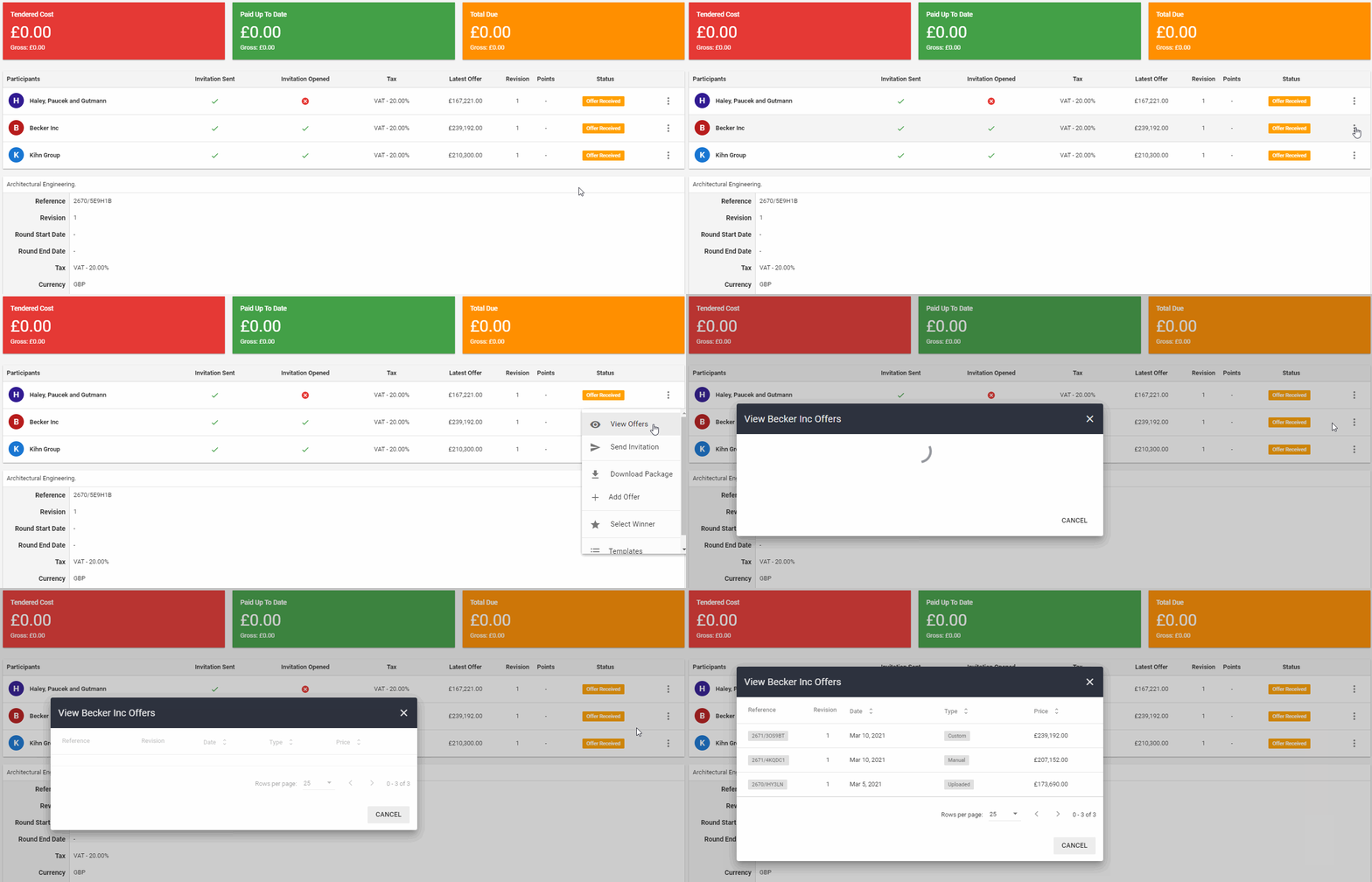
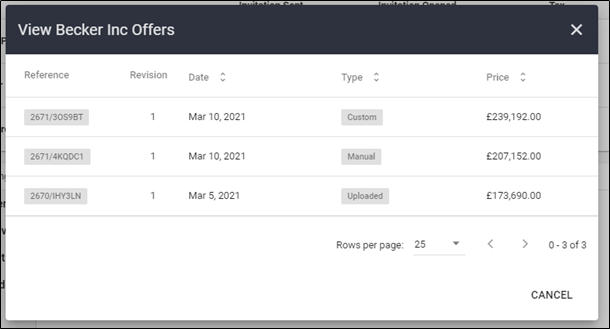
In the case where you added a few offers from the same supplier, you will be able to choose which one you would see in detail. On this screen, there're also Offer Date, Total Offered Net Price and Type included. The Type points the way how offers have been added to the system.
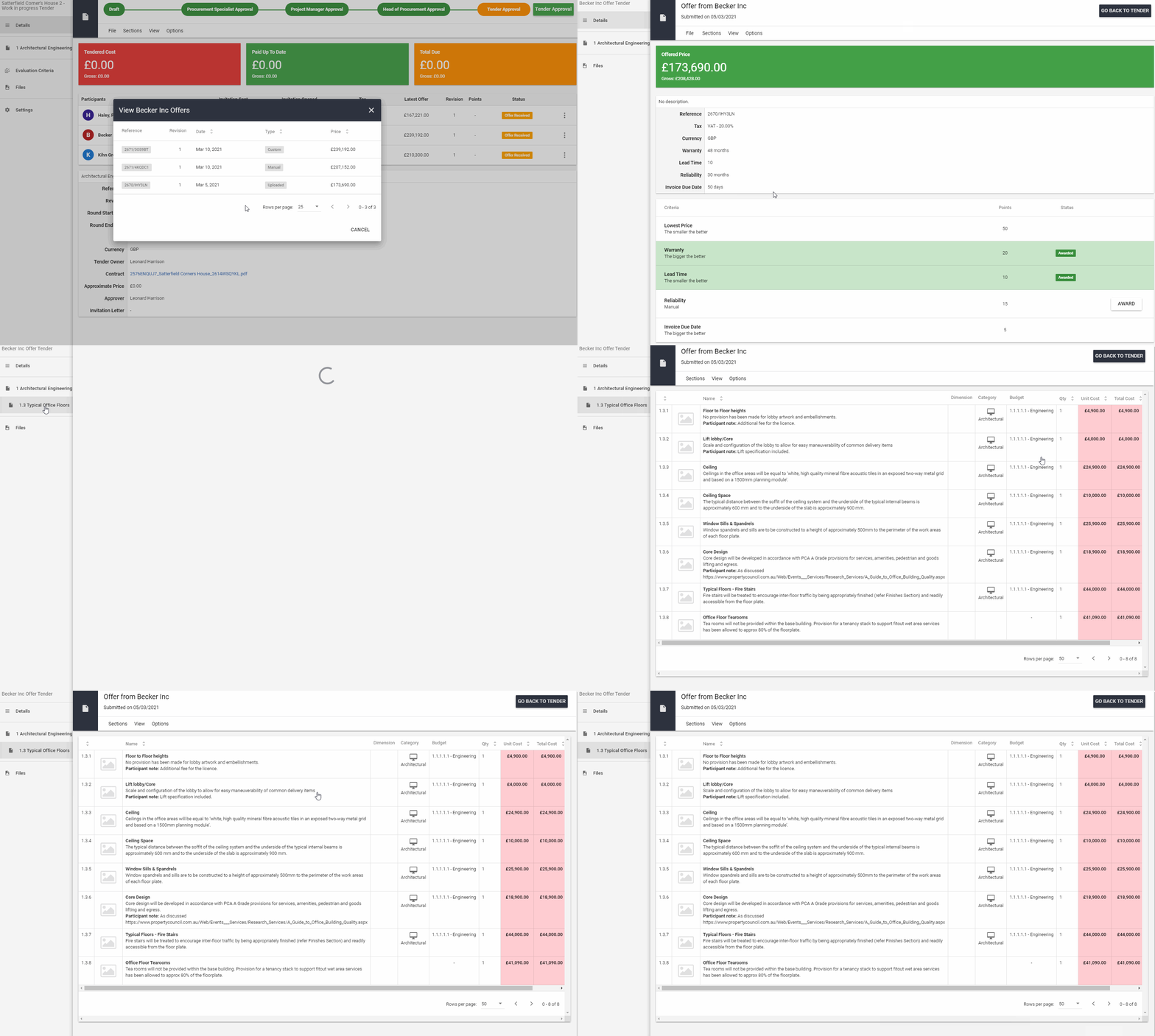
Once you choose the right offer, you will see its details alongside the description, evaluation criteria, and supplier prices & comments.
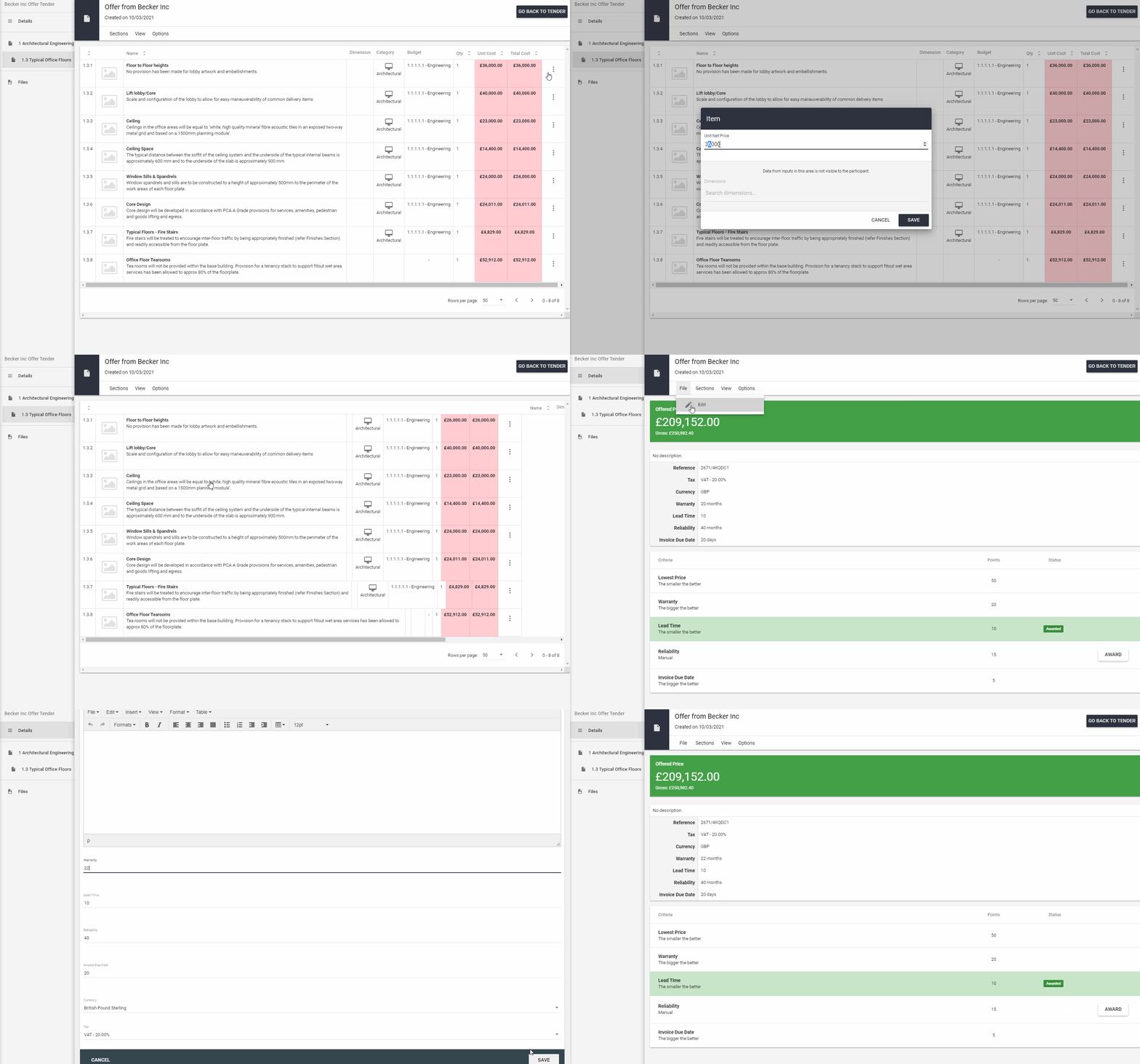
From this view, you can easily edit the item price or any other offer details (File > Edit or Edit individual items).
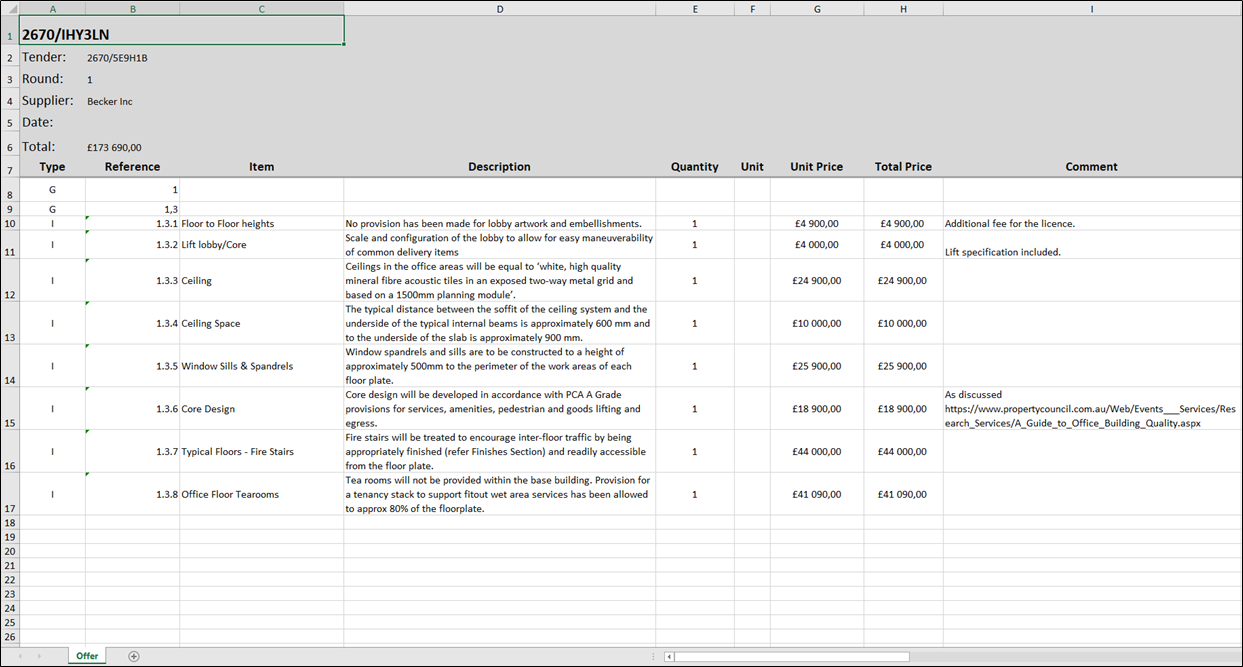
There's also a possibility to download the offer in Excel format using View -> Other Formats -> Tender Existing Offer
The downloaded file will look as below:
2. Offer Analysis
On the other hand, there is also a possibility to compare all participant's offers with each other.
To do so, please use View -> Offer Analysis

The matrix shows you all the items and highlights on the green the lowest prices and on the red the highest price per item. The scale of colors is fit based on the overall prices. You can search for specific items or select Revision.
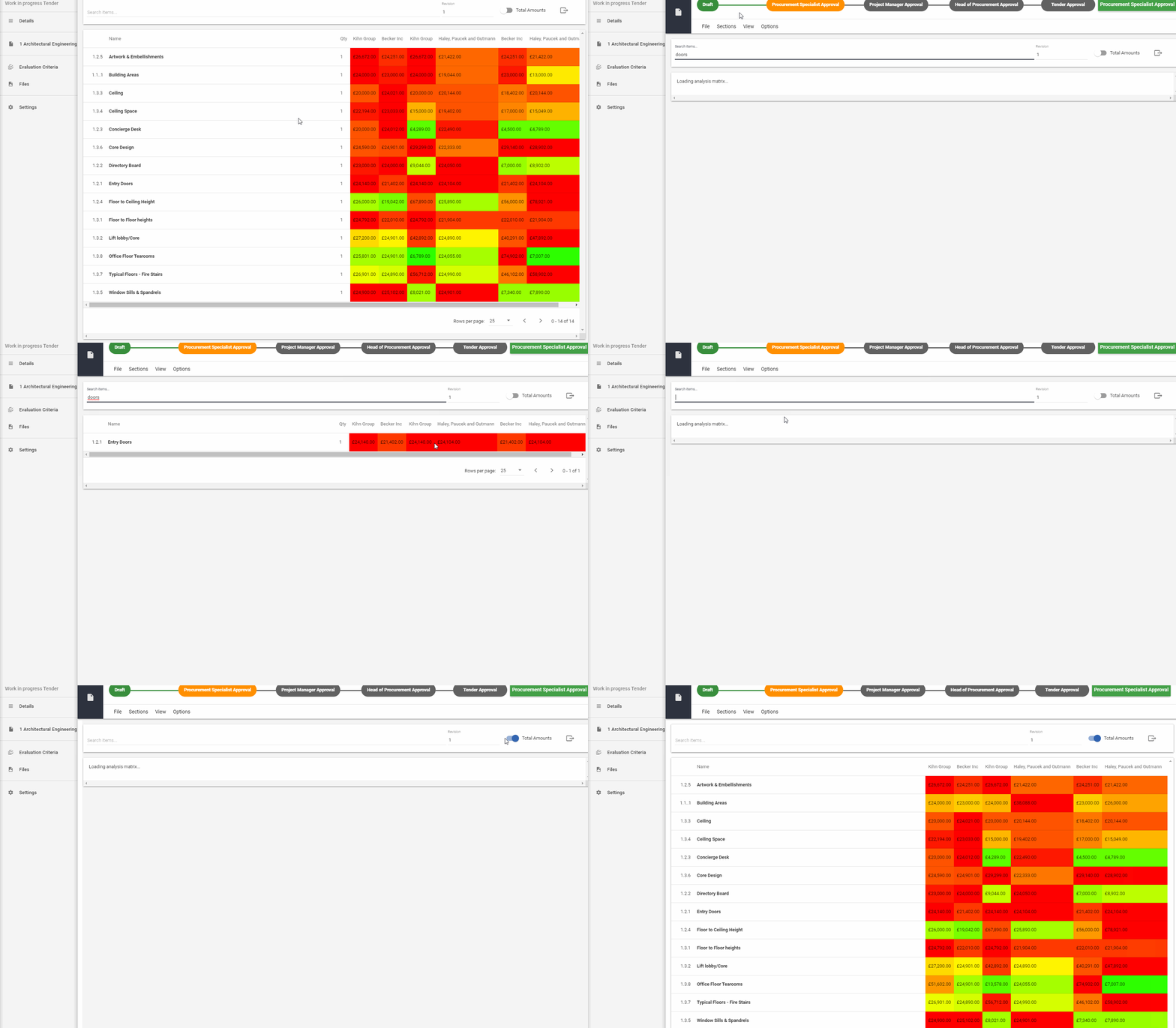
The total amount will hide the quantity and allow you to see the total prices per item. It may be helpful when your suppliers provide you with different quantities in the case when you let them fill it by themself.
There's also a possibility to download the Offer Analysis Excel file using the button  and selecting Price Analysis Excel.
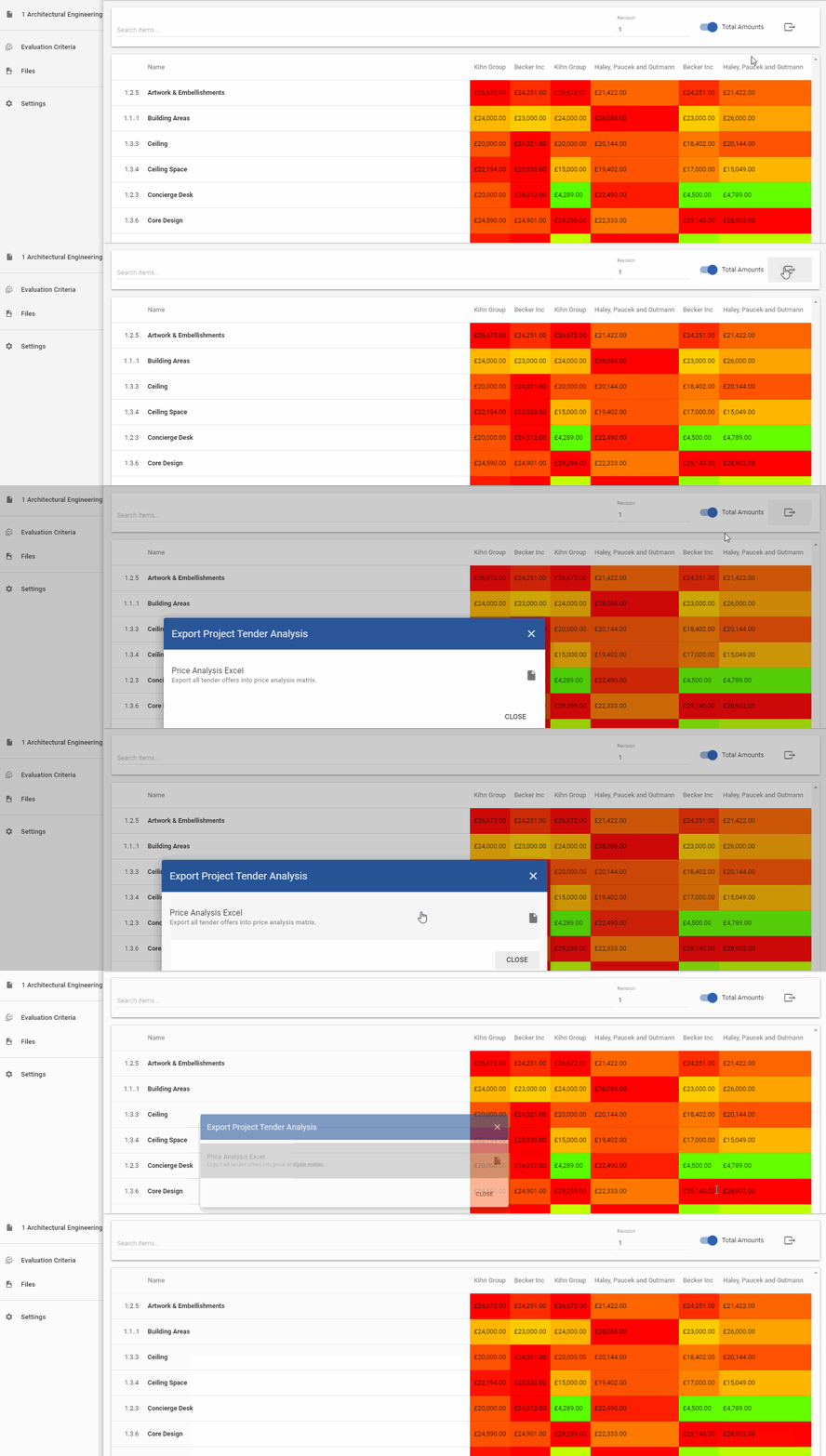
NOTE!!! In case you specified Tender Round End Date, the prices from the supplier will not be visible until this date and you will see ???? instead of the prices.
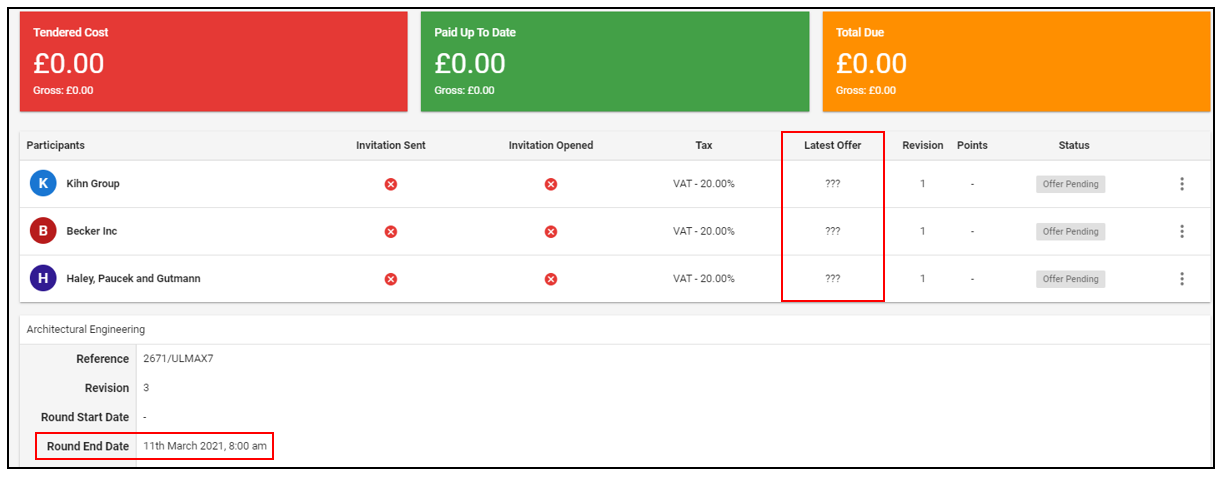
The prices will be shown on the day of Tender Round End.
If you would like to learn more about Archdesk Tendering Module, please read the Tendering Module Guide. If you still have any question, please contact us at support@archdesk.com