Once you send invitations of the Tender to participants, you may wonder how to add their offer.
Archdesk allows subcontractors to add their offers by themself via Uploader Link and pass that data automatically to the system without the work of any system user. Of course, there are also optional methods of adding the offer directly in Archdesk for system users and we will go through all possibilities step-by-step:
1. Adding Offer via Uploader Link
The first, least time-consuming and most automated method of adding a tender offer provided by the subcontractor. You only provide the subcontractors via e-mail with the Pricing Spreadsheet Template and link to upload it.
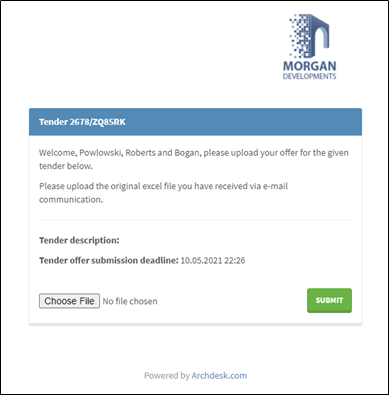
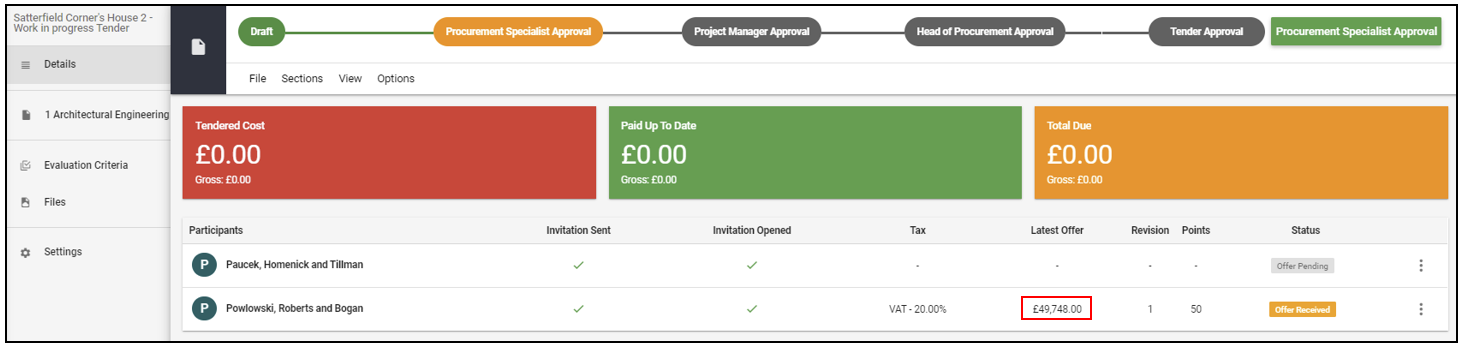
When they choose the file and hit the SUBMIT, you will immediately see the offer value in the system.
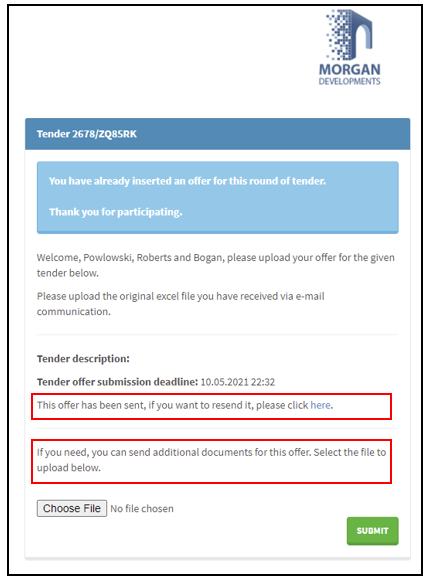
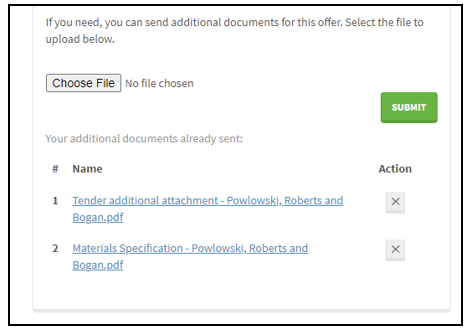
After that, the supplier can resend his offer or attach additional files related to the offer via the same link.
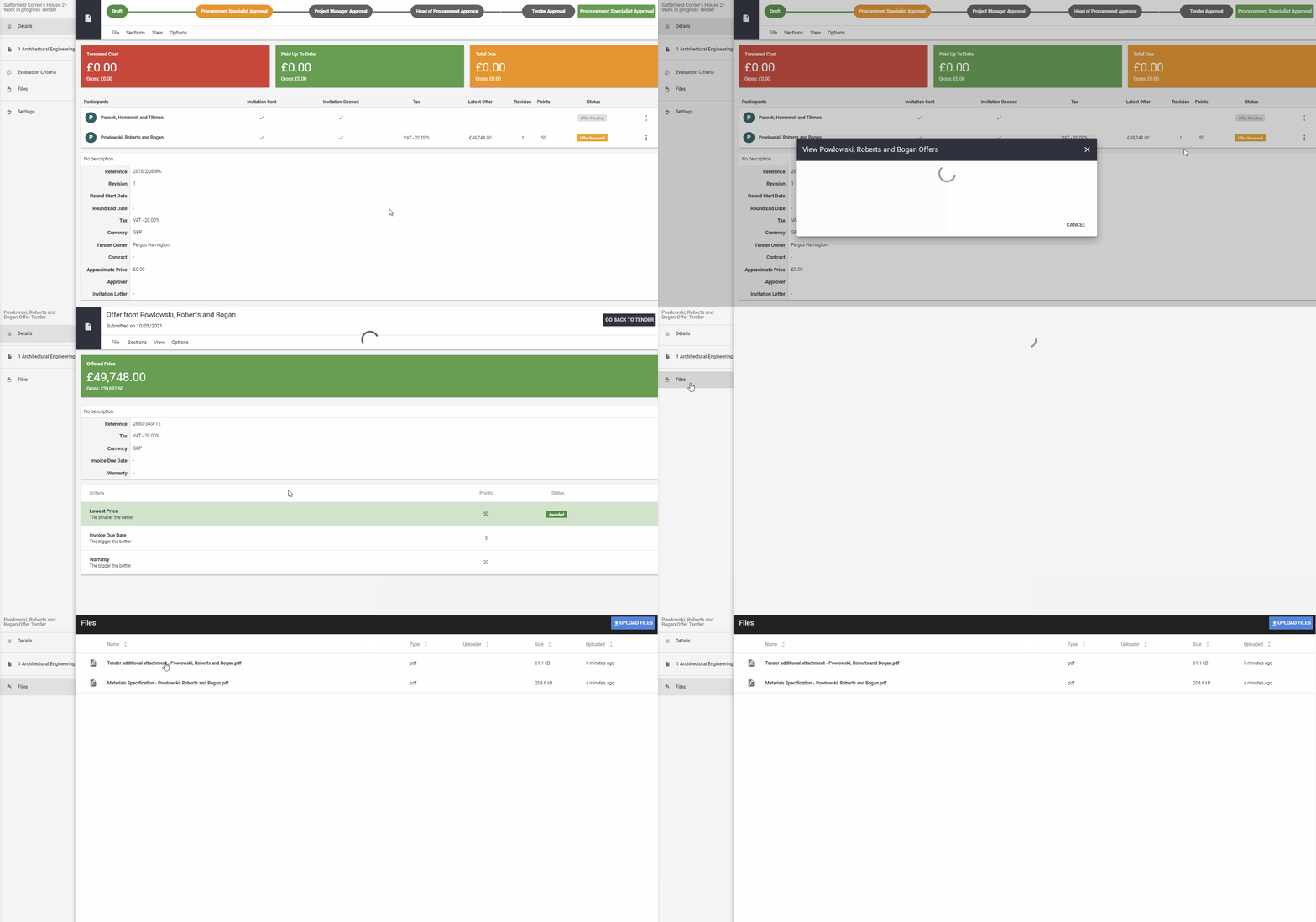
The offer will overwrite the existing one and the files will be automatically transferred to the dedicated Files location related to that offer.
On the other side, the subcontractor can also manage shared files adding the new ones or removing them, when Tender Round is ongoing.
Besides using Vendor Portal, you have a few more options to add participants offer by yourself directly in the system.
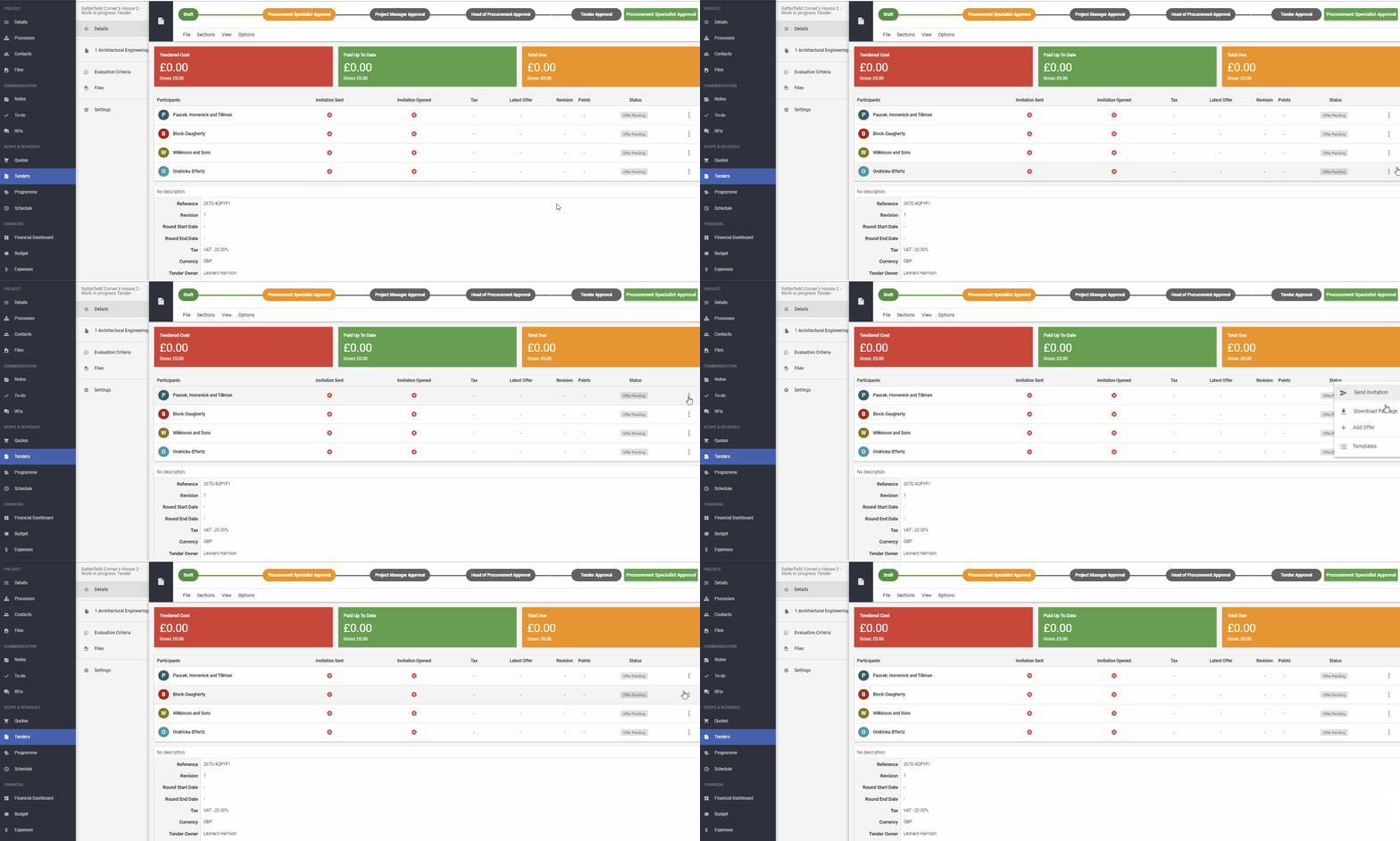
To do so, please click on the 3 dots next to the supplier name and use the option Add Offer.
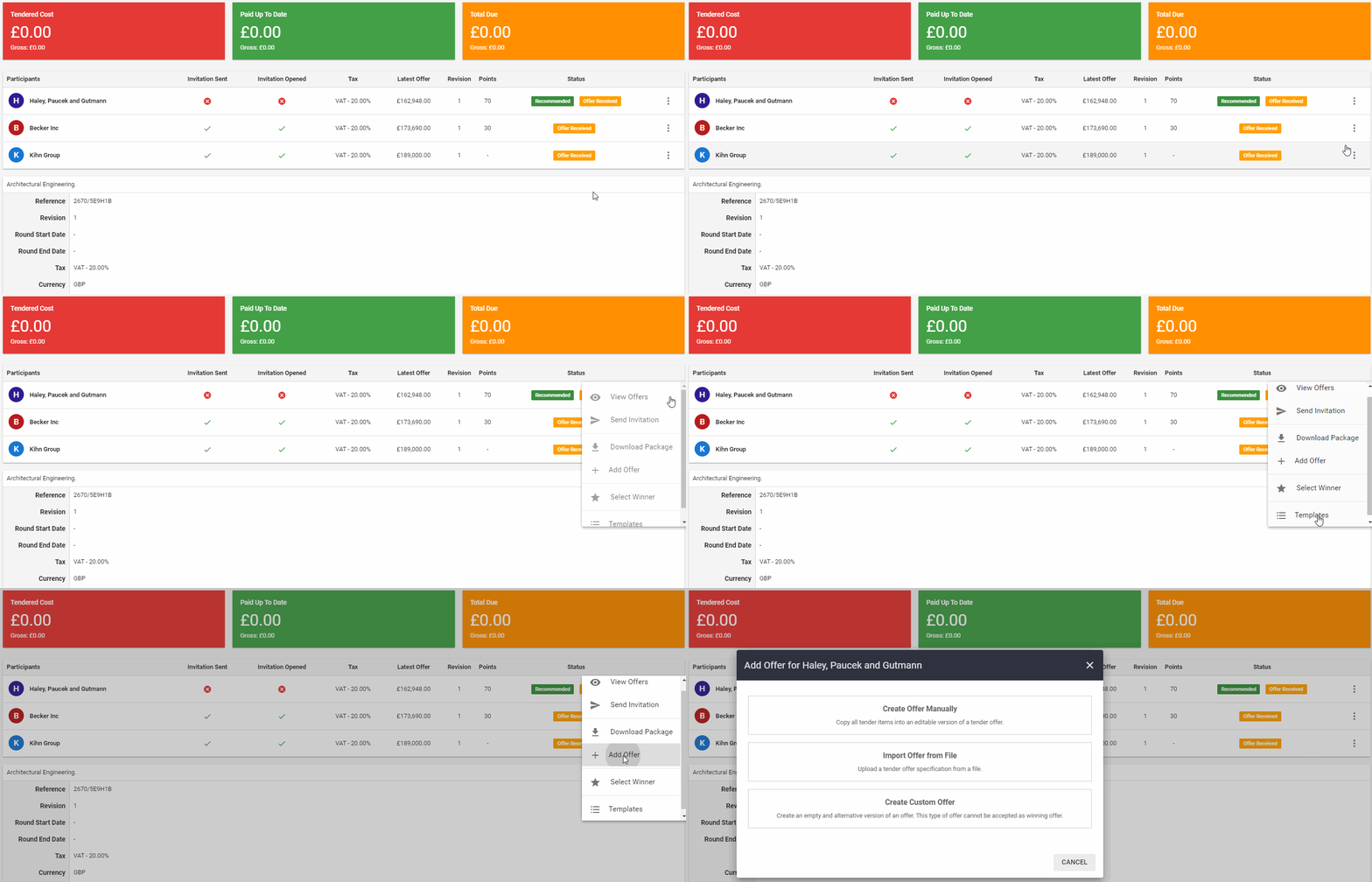
Now, you must choose the method, how you will add the offer.
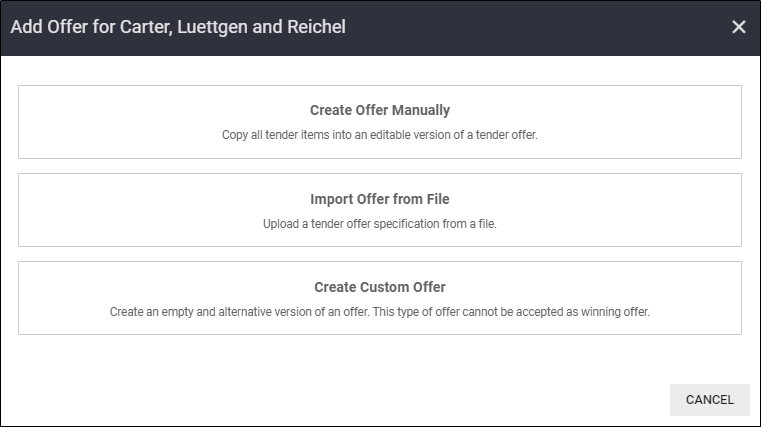
2. Create Offer Manually
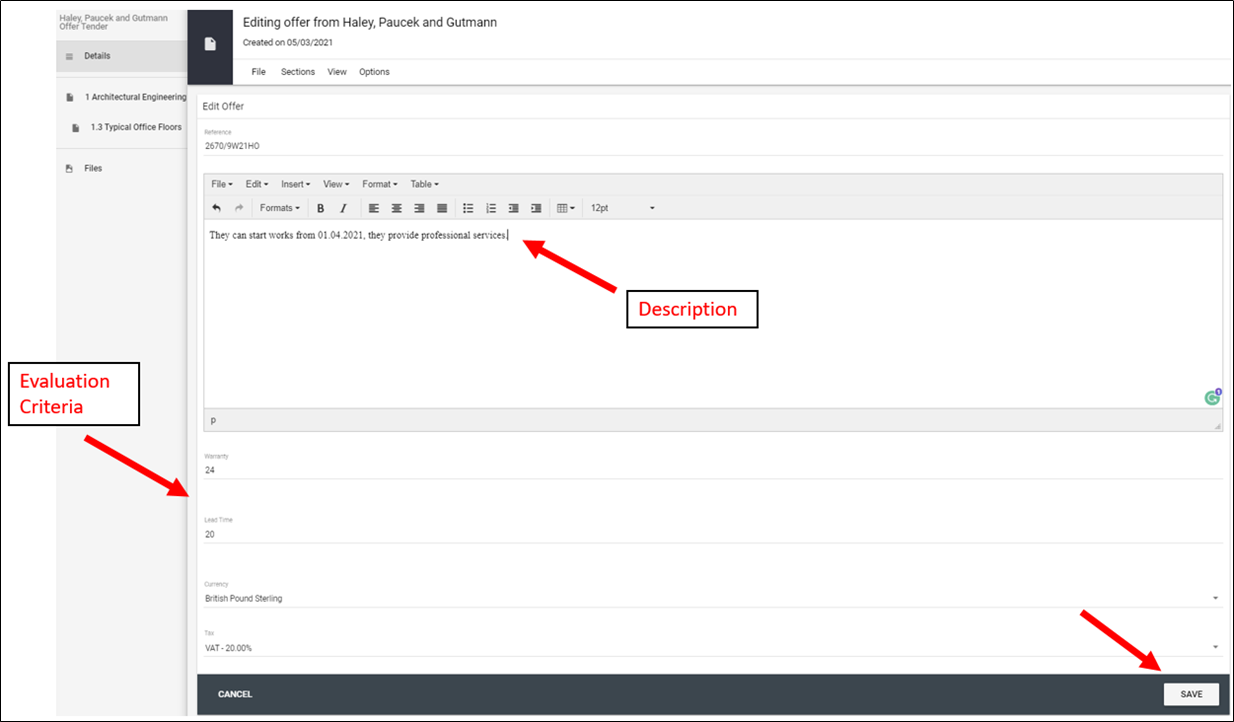
This option lets you enter the supplier offer without using a Pricing spreadsheet. At first, you can provide an offer description - for example Delivery Information or existing exclusions, and specify previously defined Evaluation Criteria. Once fields are filled, hit the SAVE button.
Then, you must specify the price for each item. Please click on the right section and then edit the particular item.
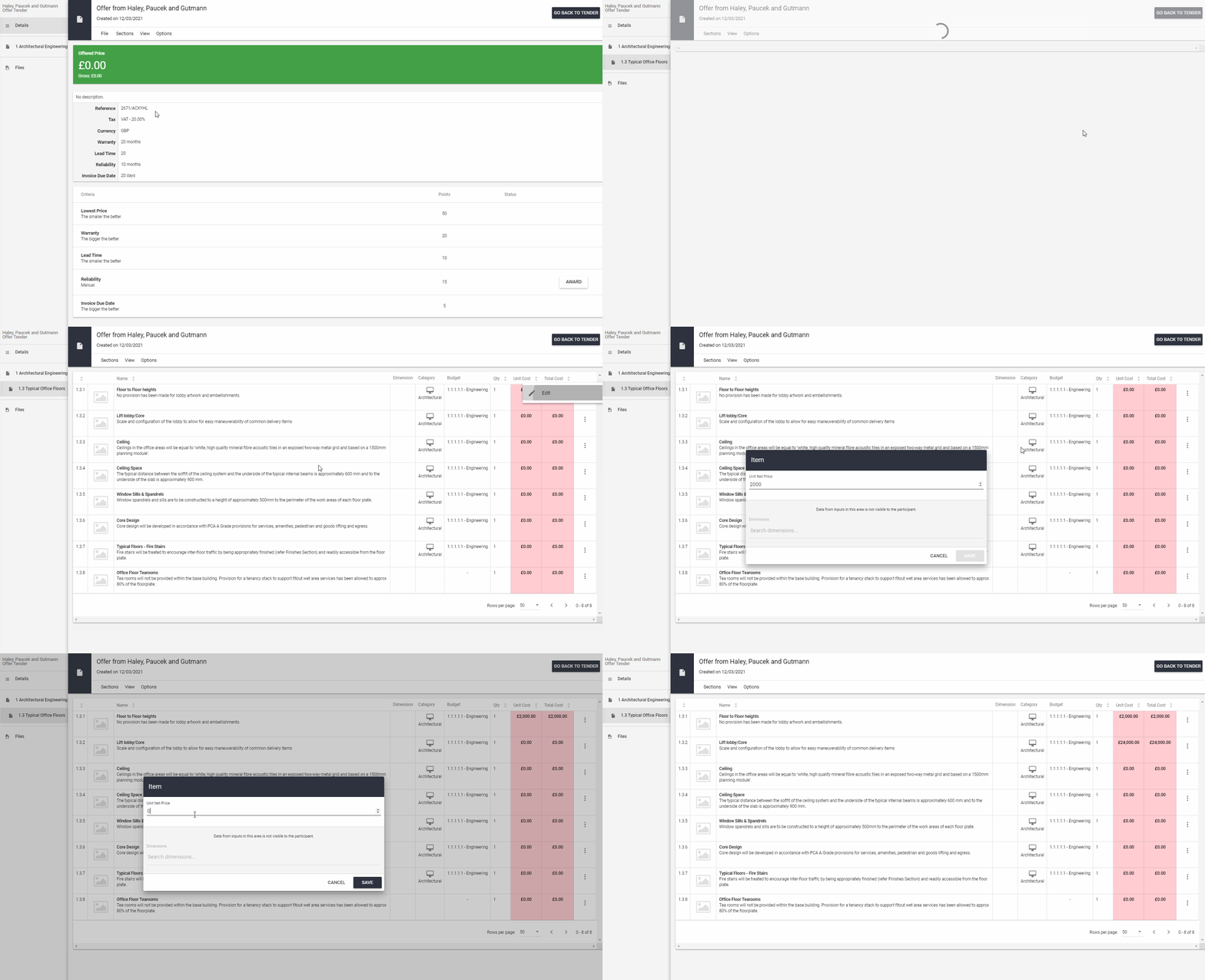
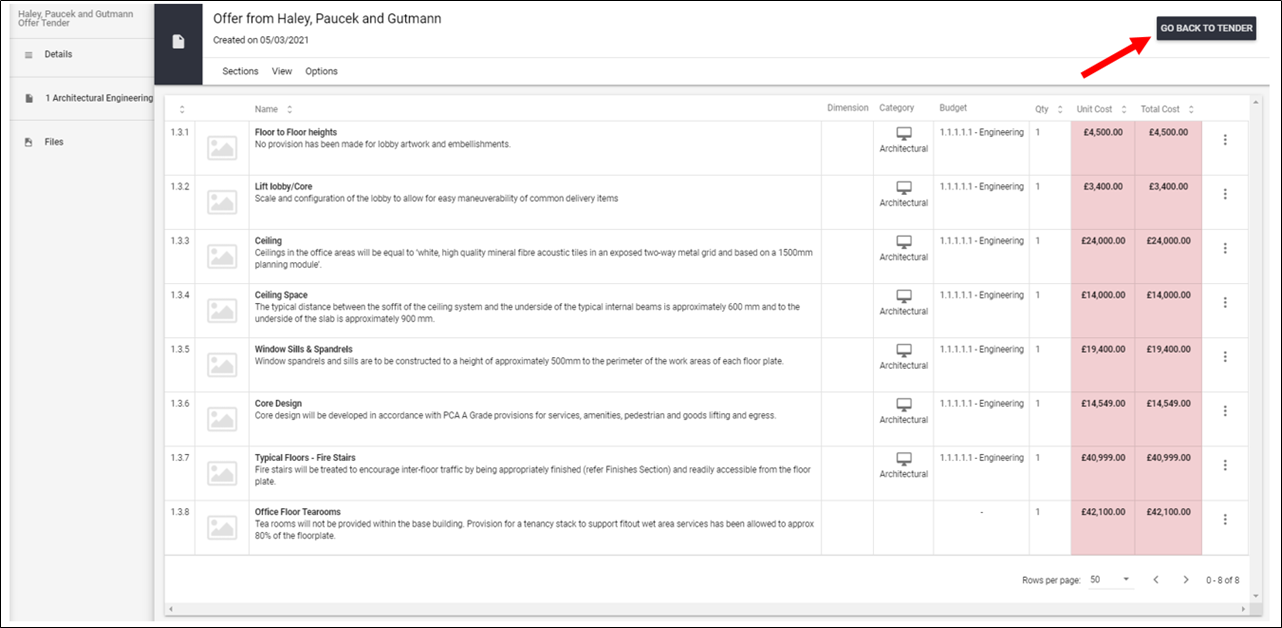
Once it is done, the total offered price will be automatically calculated. Now, you can GO BACK TO TENDER and add offers from other participants.
3. Import Offer from File
This option allows you to import the Participant Offer spreadsheet with Prices and additional comments, directly by the file provided to the supplier.
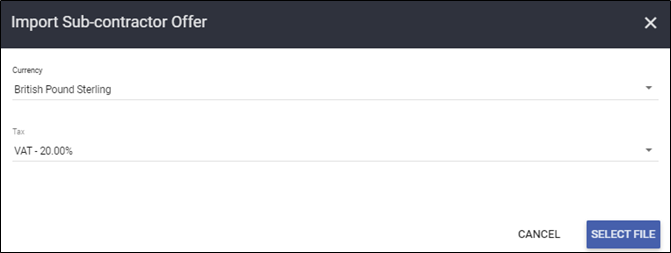
Please make sure if the right Currency and TAX are chosen and hit SELECT FILE.
You can use the supplier's file or fill in the data by yourself on the template downloaded via Participant List and three dots next to his name and then Download Package.
How to fill in the data on the Download Package/Pricing Spreadsheet?
By default, the Download Package consists only of a spreadsheet, that the supplier will have to manually edit. If you wish to add any other file related to the Tender Package, please reach us at support@archdesk.com.
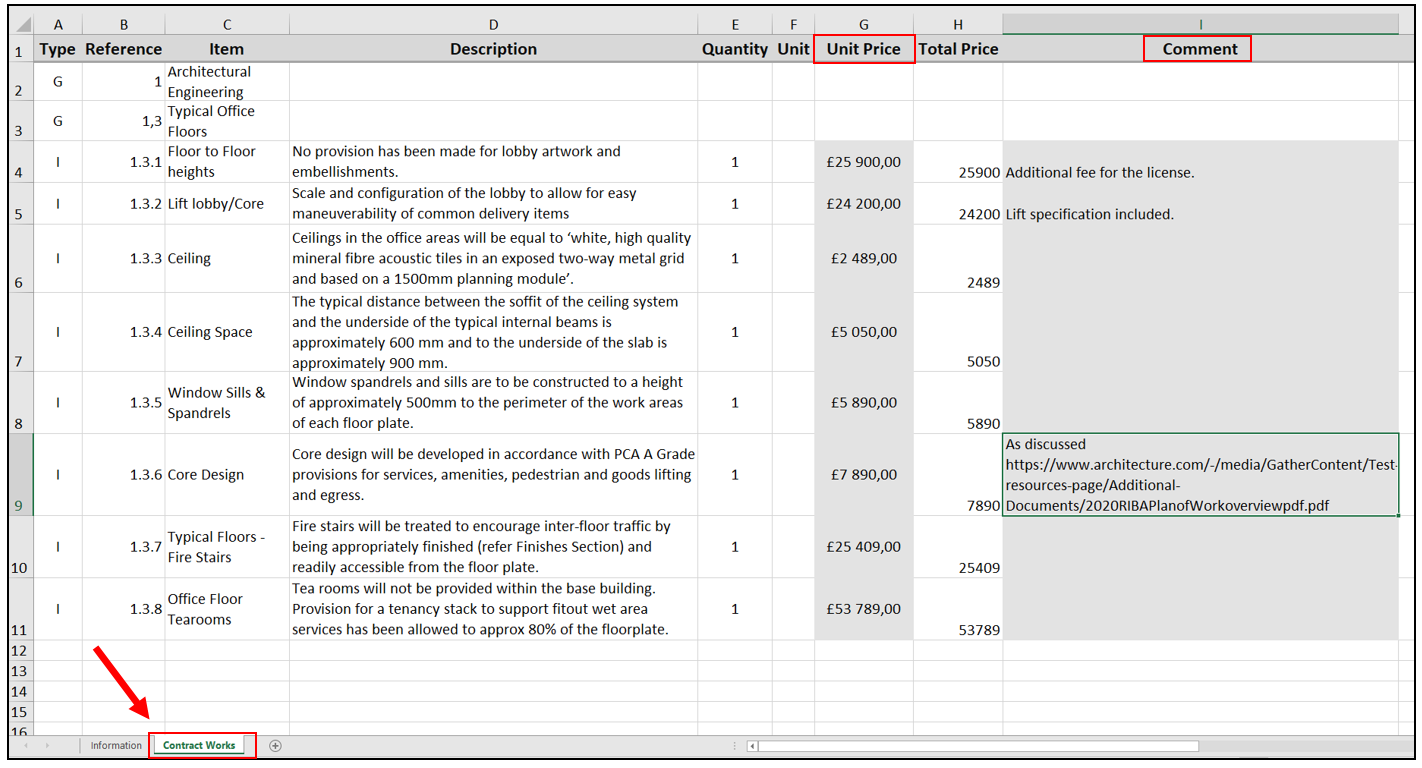
On the tab named Contract Works, besides Unit Price or Quantity, the supplier can add an additional comment for a specific item.
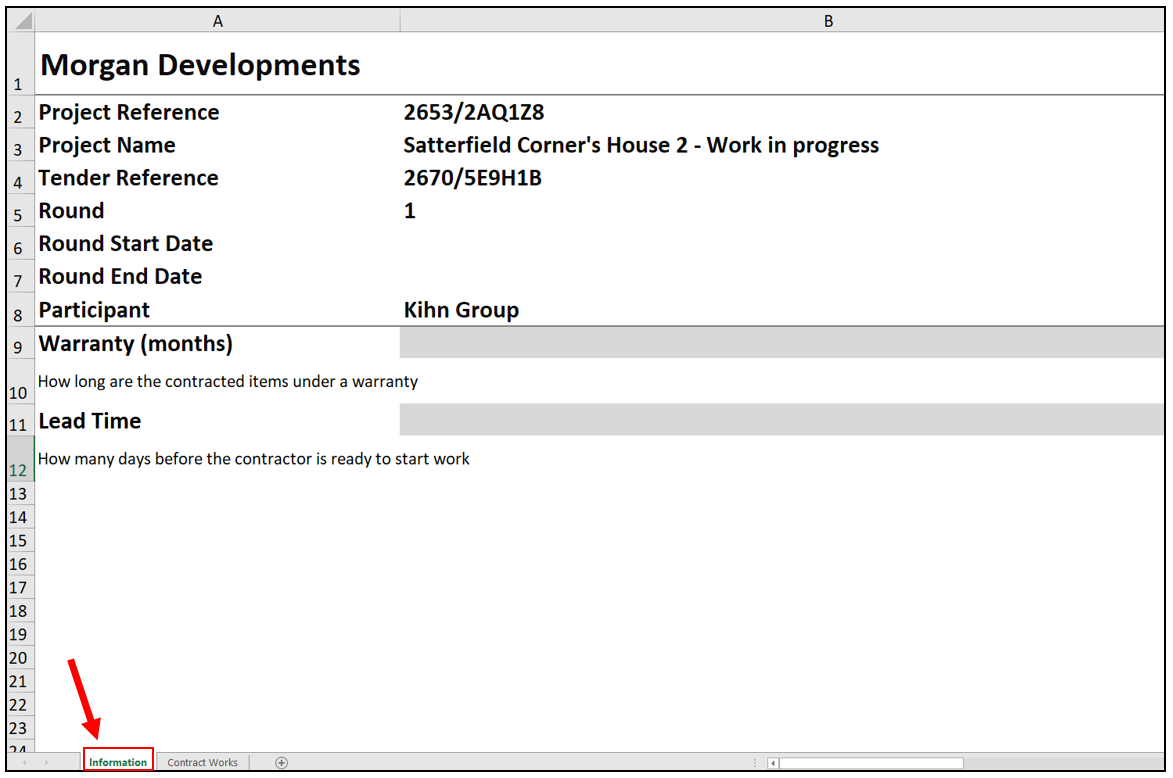
In the Information section, he can find additional information about the project and fill in the Evaluation Criteria, if included. How does the Evaluation Criteria for Tenders work?
NOTE: If you add Evaluation Criteria before sending an invitation to the suppliers, they will be visible to them.
Once the spreadsheet is filled in and uploaded, the data will be automatically transferred into the system.
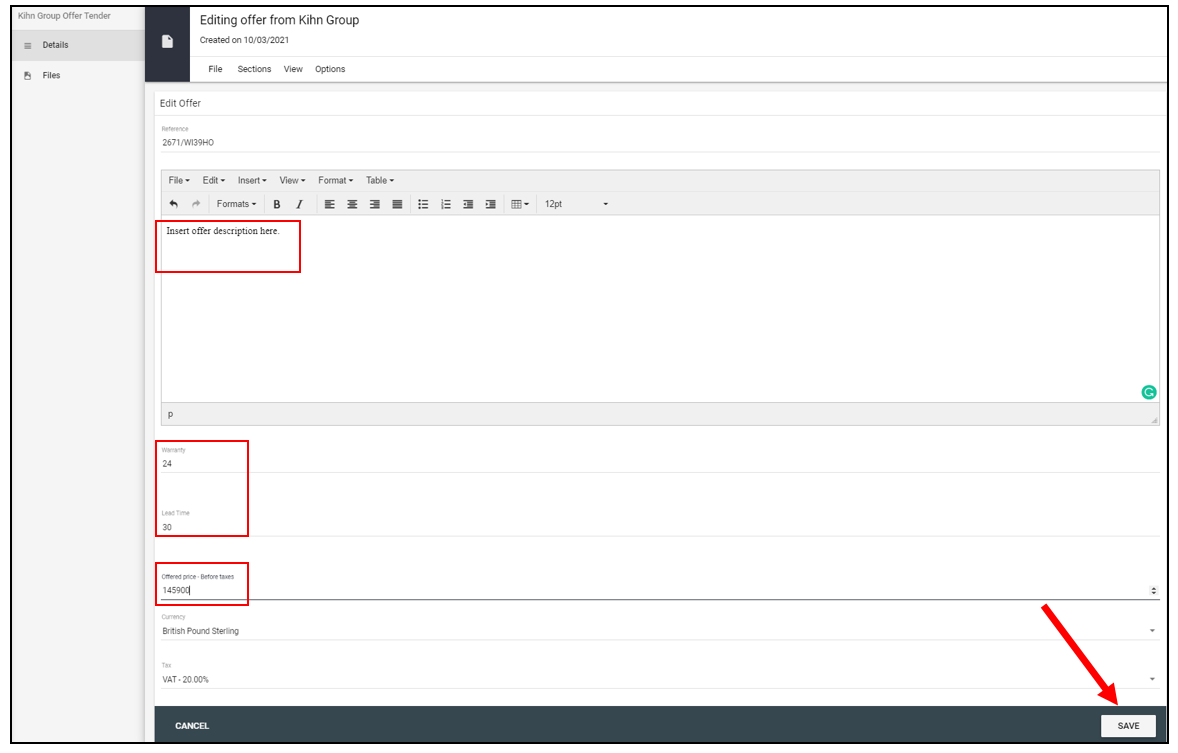
4. Create Custom Offer
This option allows you to put in the system the general price for the whole job, without splitting it for items. It will let you include evaluation criteria as well.
NOTE!!! When the scope of work with job specification changes you need to create a new BoQ (Quote) and run a new Tender and then, invite participants once again.
How to check Tender offers from the Suppliers?
If you would like to learn more about Archdesk Tendering Module, please read the Tendering Module Guide. If you still have any question, please contact us at support@archdesk.com