Once you add tender participants, you can send invitations to gather their offers.
Before you send an invitation to participants, please check the Settings, Files and Evaluation Criteria if everything needed is included.
Settings
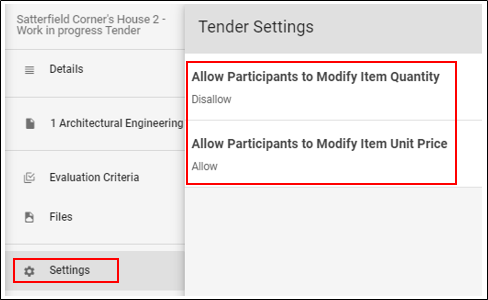
They are determining if the supplier can edit the quantity or price of the items you ask him to tender. By default, the settings are transferred from account settings, however, you can adapt them per tender.
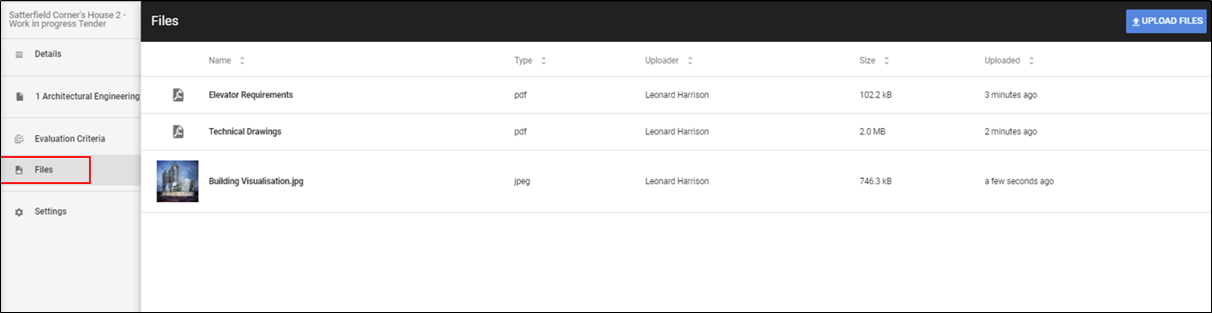
In Files, you can attach additional specifications related to that tender. During sending invitations to the suppliers, you will be able to decide if attachments are attached alongside Pricing Spreadsheet, or not.
NOTE!!! If you would make any changes with e-mail templates or Participant Offer spreadsheet, please reach us at support@archdesk.com.
Regarding the Evaluation Criteria, you can choose which ones are applicable to this specific tender. You can add them before sending invitations to the suppliers as well as after that. However, in the first case, they will be visible for the supplier on the Participant Offer spreadsheet.
Once all settings for the tender are set-up, you can double-check the specification to be provided to the supplier using Download Package.
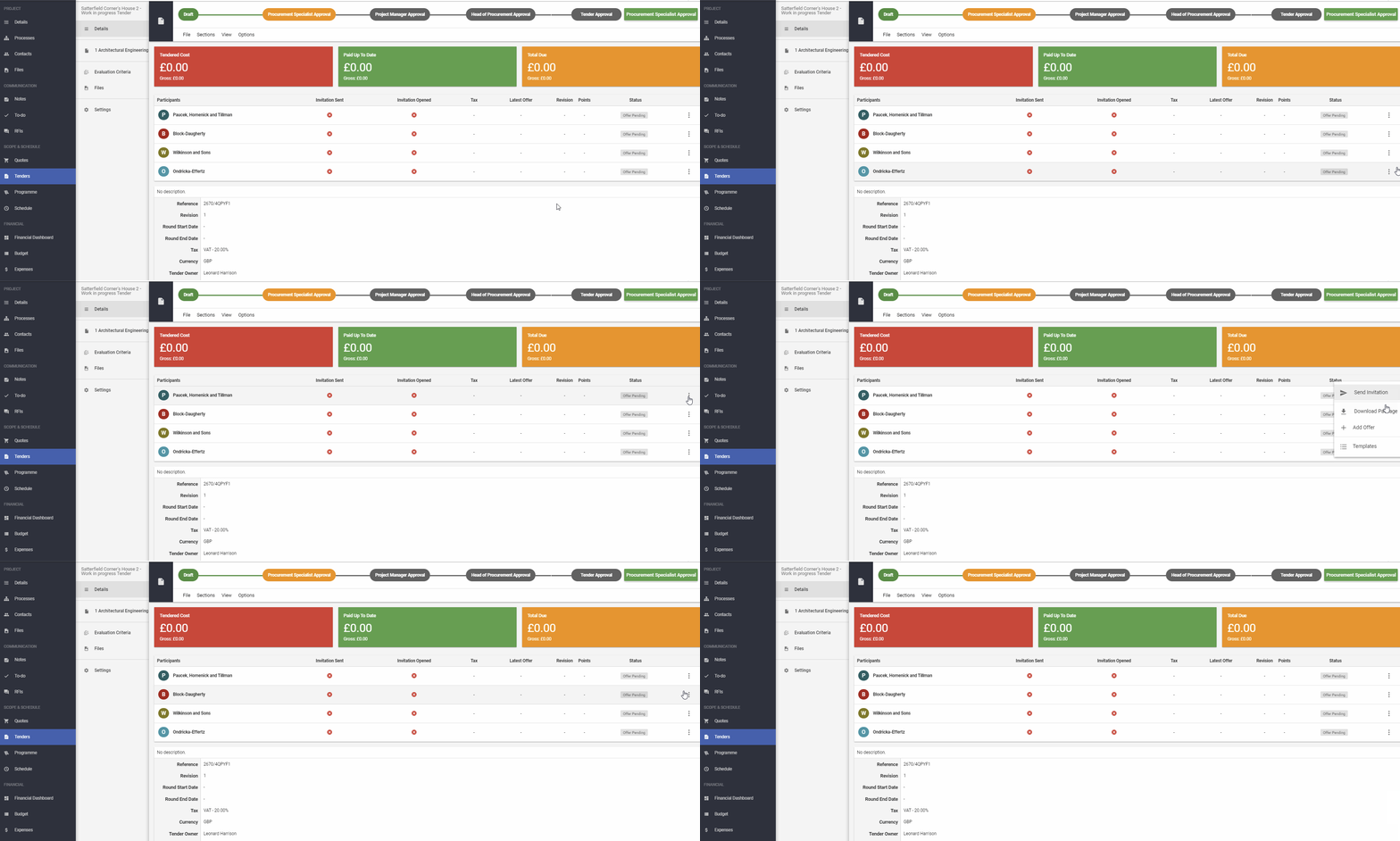
Once all necessary data are included in the downloaded Excel spreadsheet, you can finally invite the participant using the Send invitation button. You can choose one of the previously defined e-mail templates, select recipient, and decide if the tender attachments (from the Files section) are included. Please confirm the action by hitting SEND.
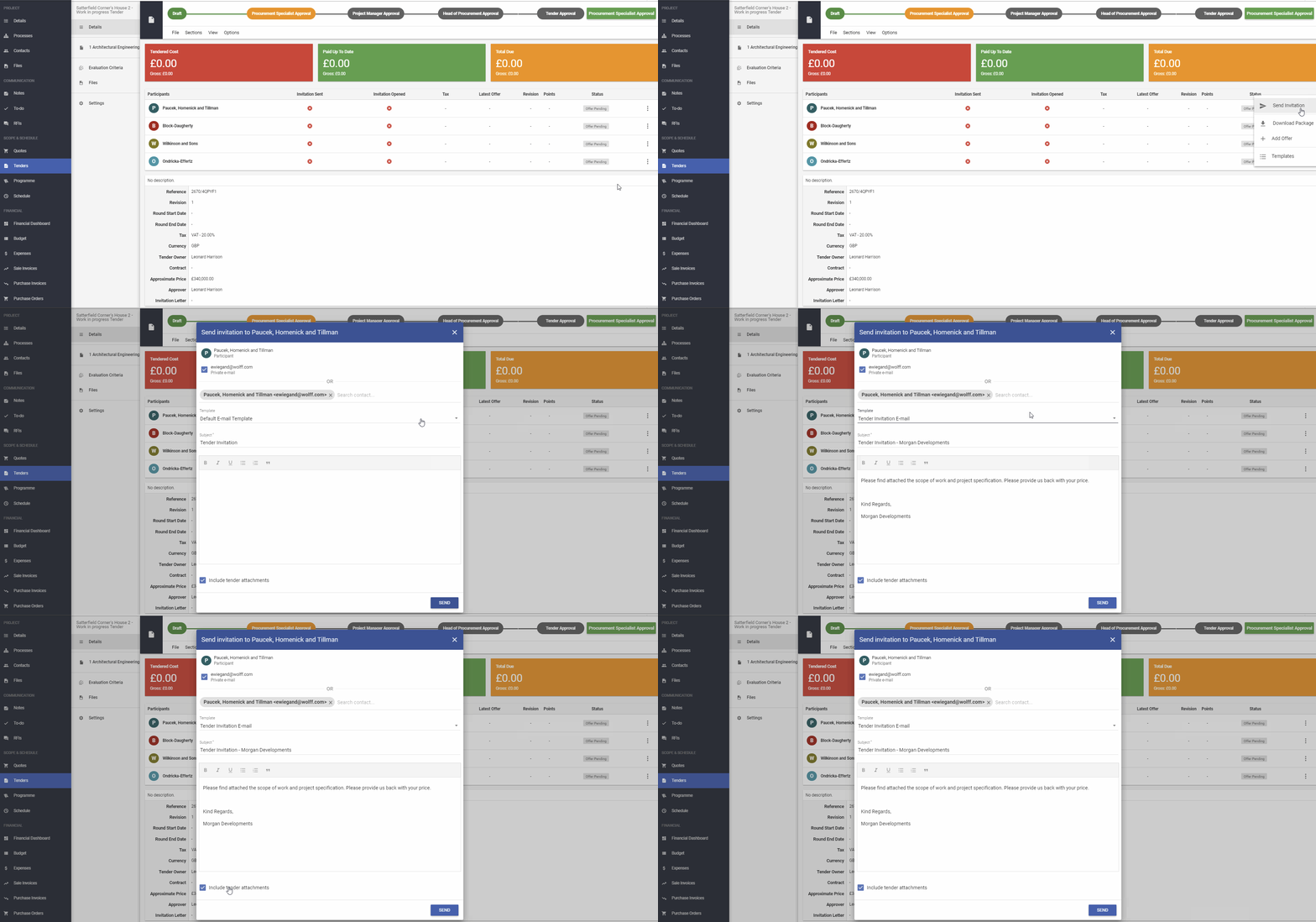
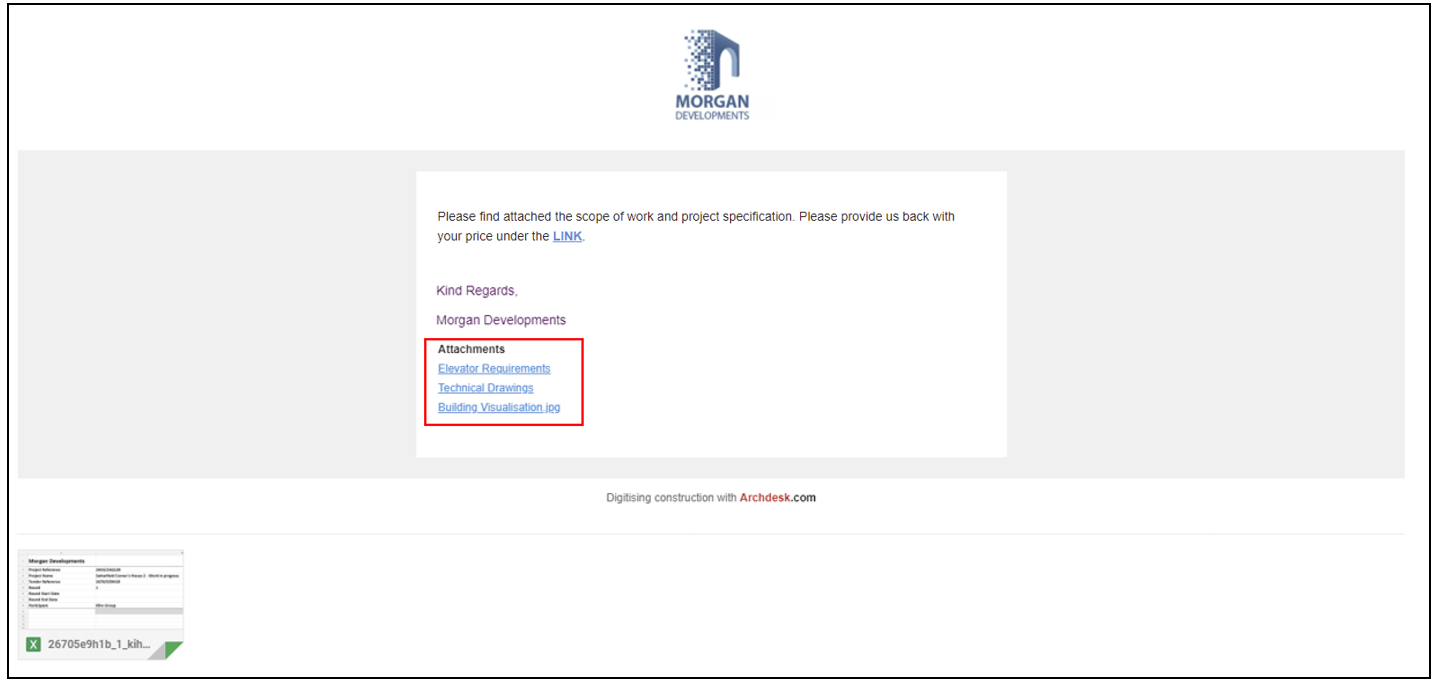
If you decide to include the attachments, they will appear on the e-mail.
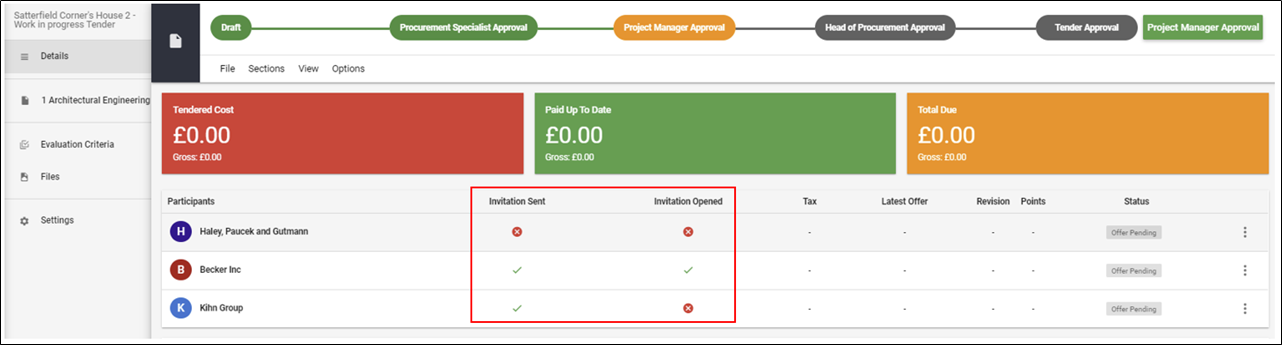
You can also easily track the status of each invitation if it's sent or opened.
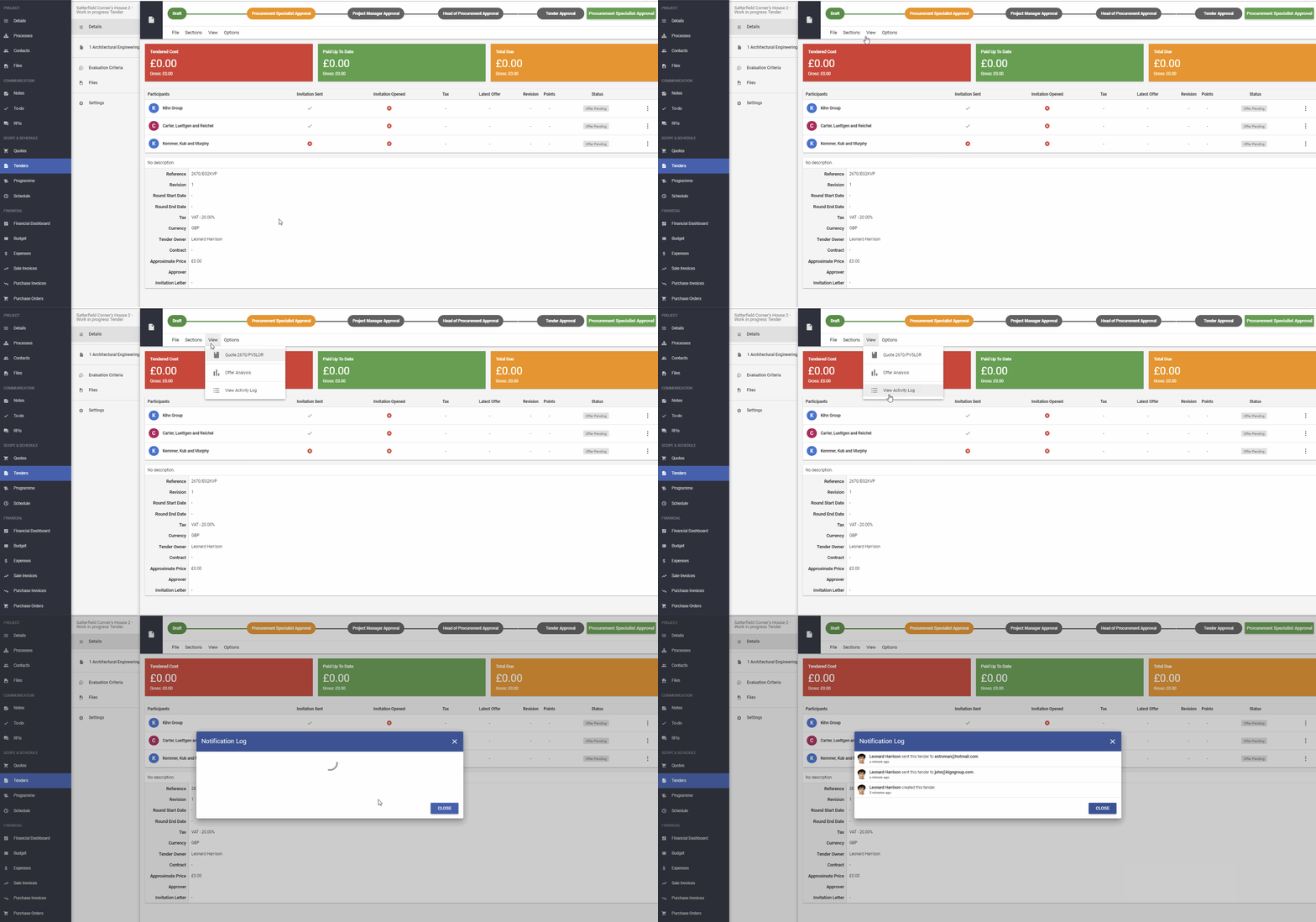
If you would like to check more detailed info with Who and When sent the invitation, it will be shown on View -> View Activity Log.
Archdesk allows subcontractors to add their offers by themself via Uploader Link and pass that data automatically to the system without the work of any system user. To learn more about so, please check the tutorial below:
How to add the Tender offers from the suppliers?
If you would like to learn more about Archdesk Tendering Module, please read the Tendering Module Guide. If you still have any question, please contact us at support@archdesk.com