When the suppliers' offers and points for the Evaluation Criteria are known, the system will highlight the Recommended Winner. Now, you can manually choose the Tender Winner on the Participant list by clicking on the 3 dots (on the line next to their name) and choose the Select Winner option. The system will ask you to CONFIRM the action.
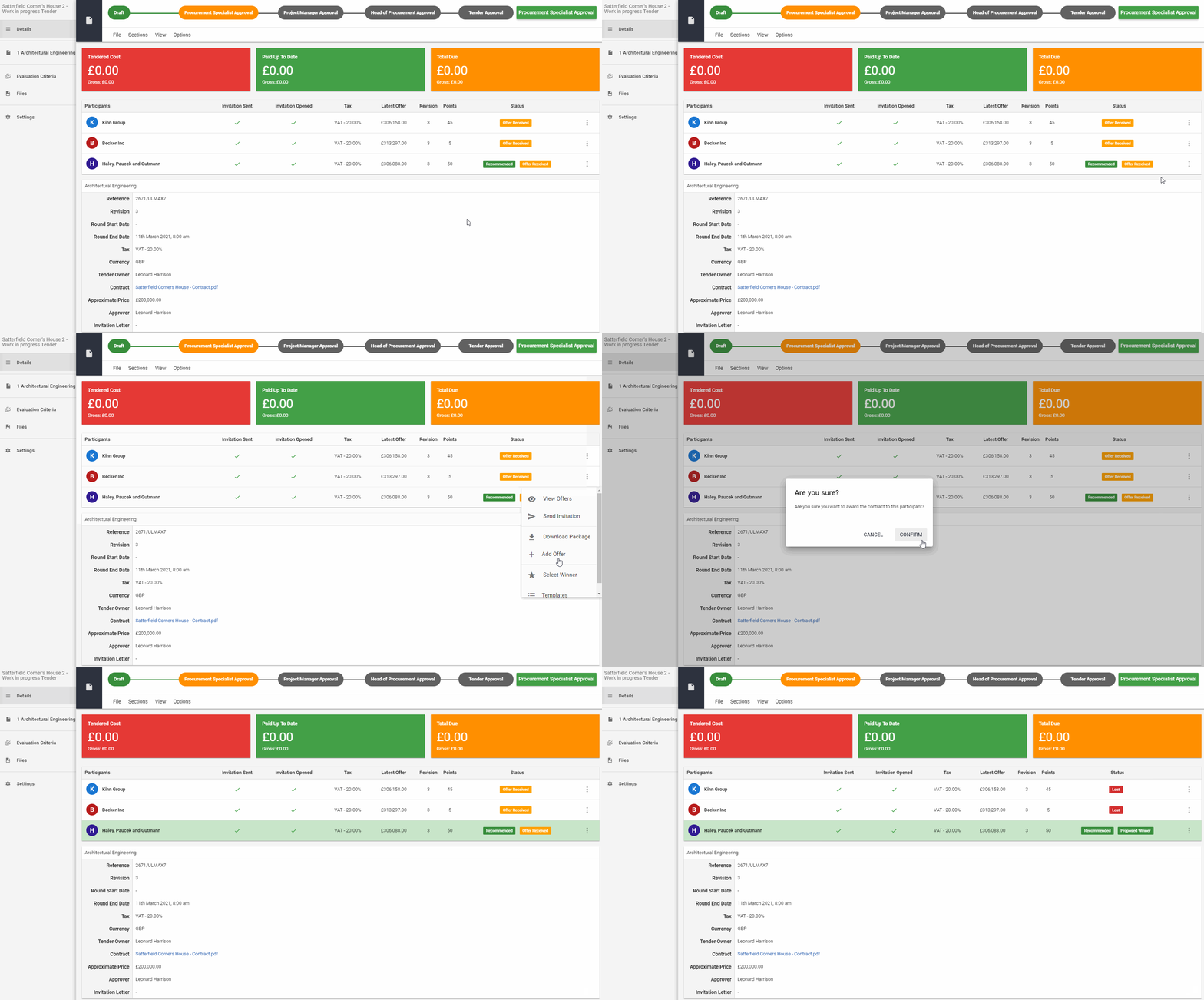
NOTE!!! If the winner is still not up to your liking, you can overwrite the decision and manually choose the supplier you wish.
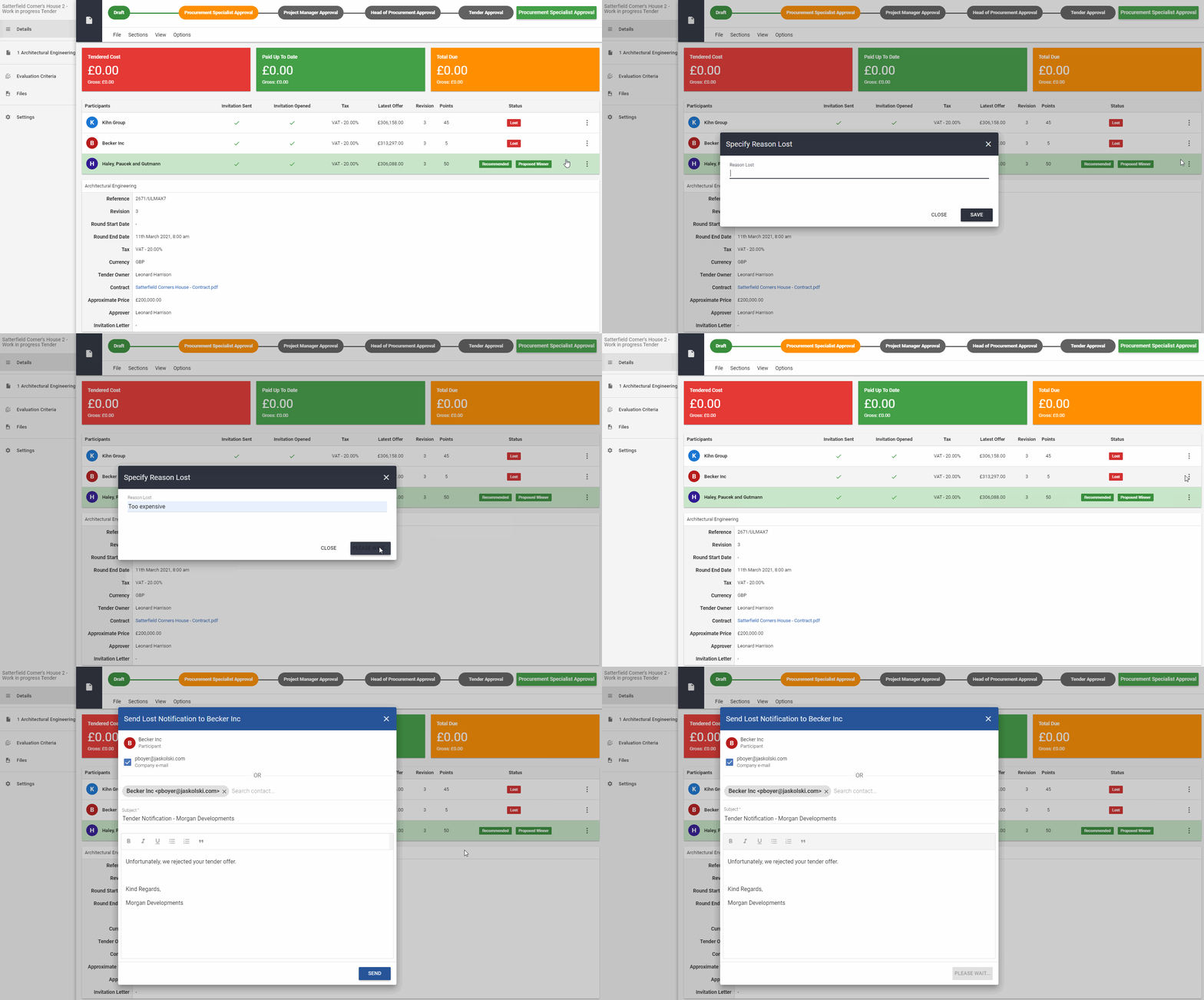
Once you select the winner, the other participants' status change to Lost. Now, you can specify the Lost Reason and Send Lost Notification E-mail to inform them about the rejected offer. In order to do that, position yourself on their line, click the 3 dots and Specify The Lost Reason - make sure you hit the SAVE button. After that, you can choose the same 3 dots and Send Lost E-mail to the participants that lost the tender. You can check or modify Lost Reason in the feature by the same button if needed.
 Now, you can go through the Tender Approval Process. Once it's fully approved, the Winner Offer will become Tendered Cost. The Total Quoted Cost on the related Quote will be automatically updated together with costs for individual items.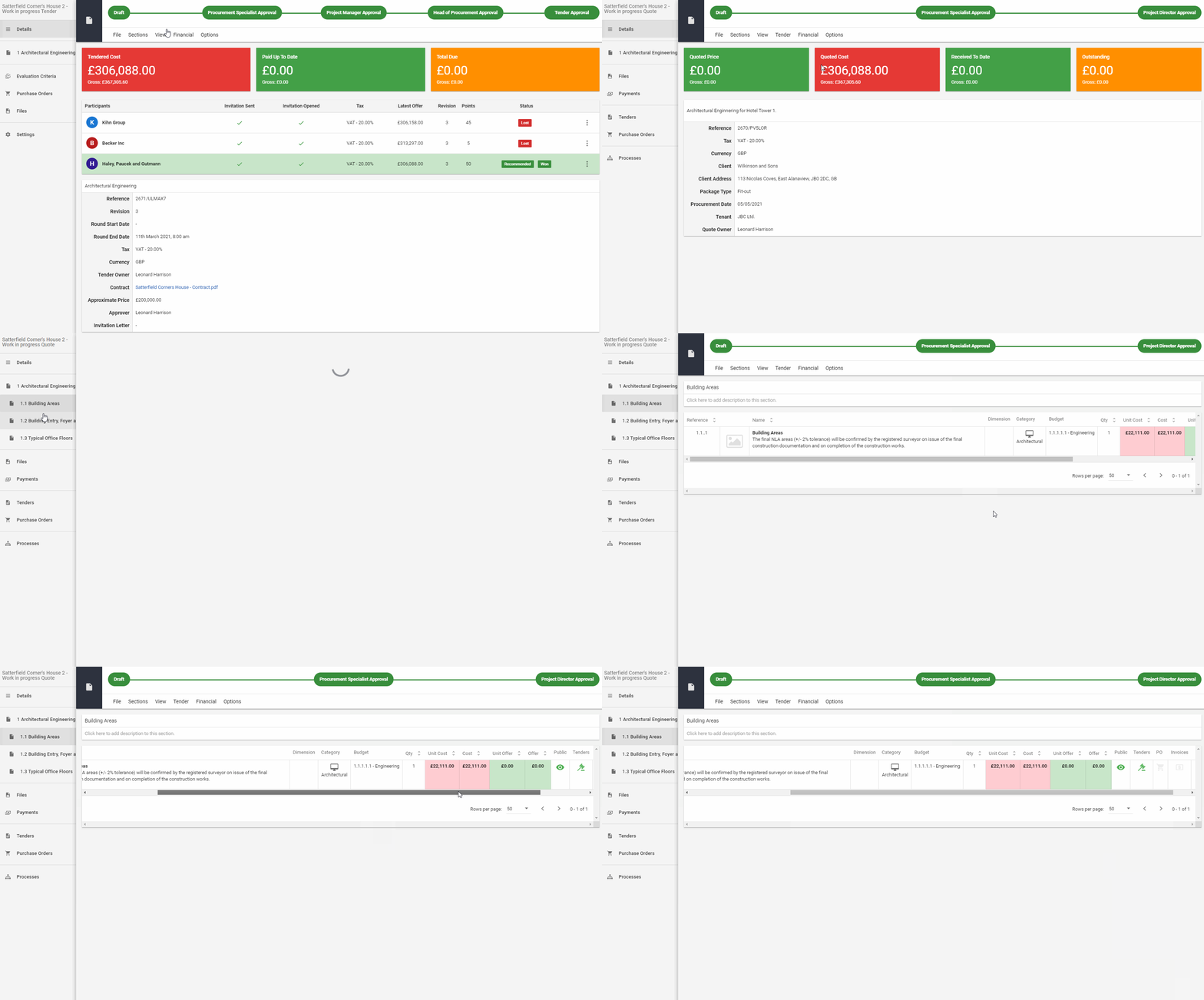
You can also easily navigate to a related Tender from the Quote if any exist for that particular item (through the Tender menu connected to the Quote). 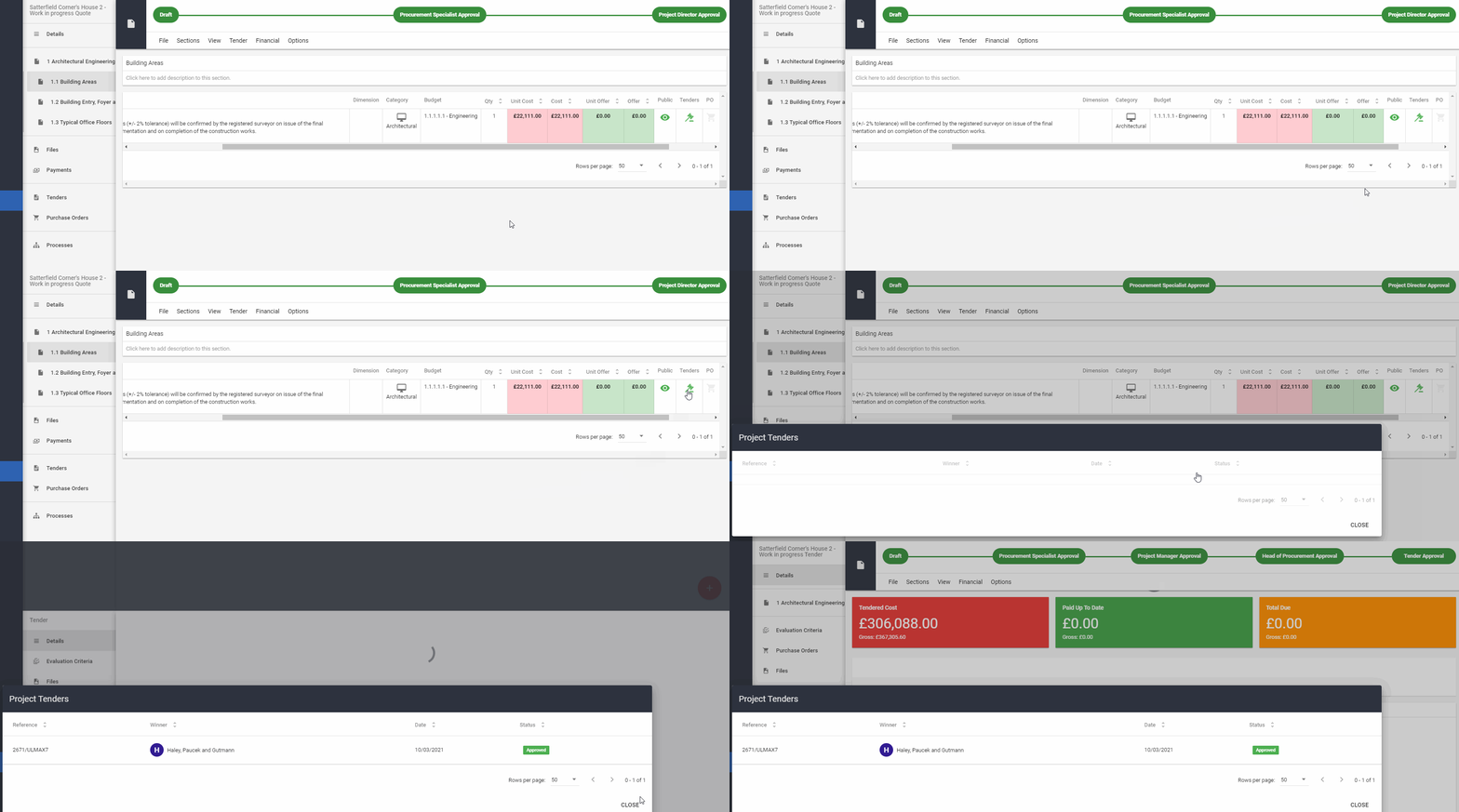
Once the Tender is completed, you can create a Purchase Order directly from the Tender.
If you would like to learn more about Archdesk Tendering Module, please read the Tendering Module Guide. If you still have any question, please contact us at support@archdesk.com